Excluded by Noindex Tag: Troubleshooting & Fixes 2026
Seeing 'Excluded by noindex tag' in Google Search Console? Learn how to diagnose, troubleshoot, and fix this status to recover your search rankings.
 Maya Krishnan
Opening your Google Search Console (GSC) Page Indexing report and seeing a spike in grey bars labeled "Excluded" can trigger immediate anxiety. Among the various statuses, "Excluded by 'noindex' tag" is one of the most common—and misunderstood—signals Google sends to webmasters.
Often, this status is exactly what you want. It means your directives to keep admin pages, shopping carts, and internal search results out of Google's index are working.
However, when this status appears on your high-value landing pages, blog posts, or product categories, it is a critical SEO emergency. A "noindexed" page is invisible to searchers. It drives zero organic traffic. It generates zero revenue from search. Removing the tag is one piece of the larger job of getting your website indexed on Google.
In this guide, we will break down exactly how to diagnose the source of the noindex tag, how to determine if it’s intentional or accidental, and the specific steps to fix it across different platforms.
Key Takeaways
- Confirm intent first. "Excluded by 'noindex' tag" is only an error when it hits pages you want ranking—admin, cart, and thank-you pages should carry the tag.
- Check three hiding spots. The directive lives in the HTML
<meta name="robots">tag, the server-sideX-Robots-Tagheader, or JavaScript-injected markup. Ruling out all three is the whole diagnosis. - Never combine noindex with a robots.txt block. If crawling is disallowed, Googlebot can't read the noindex directive—so leave the page crawlable when you want it dropped.
- Fix the root cause, not the symptom. The source is usually a CMS visibility setting, an SEO plugin's advanced toggle, or a server header copied over from staging—not the page content.
- Force a recrawl to recover. After removing the tag, clear caches, run "Test Live URL," and click Request Indexing (or Validate Fix for site-wide templates) so Google re-processes the page.
What "Excluded by 'noindex' tag" Actually Means
When Googlebot visits a URL, it looks for instructions on how to handle the content. If it encounters a directive telling it not to add the page to the search results, it reports this status.
This instruction comes in two primary forms:
- HTML Meta Tag: A line of code in the HTML head section of your website.
- HTTP Header (X-Robots-Tag): A server-side response sent before the page content even loads.
When you see this status in GSC, it confirms two things:
- Google can access the page (it is not blocked by robots.txt).
- Google respected your instruction to drop the page from the index.
This makes noindex distinct from softer indexing problems. If Google visited but chose not to index on its own, you would instead see crawled - currently not indexed; if it never fetched the page at all, you would see discovered - currently not indexed. With noindex, the exclusion is your directive, not Google's judgment—which is why the fix is always about removing the tag.
The "Noindex" vs. "Blocked by Robots.txt" Conflict
A common misconception is that you should block unwanted pages in robots.txt and add a noindex tag. This is incorrect.
If you block a page in robots.txt, Googlebot cannot visit the page to read the "noindex" tag. The page might still appear in search results (usually without a description) because Google knows it exists from external links. To properly exclude a page, you must allow crawling so Google can read the "noindex" directive. If you are unsure which rules you have live, review your robots.txt setup before layering directives on top of each other.
Diagnosing the Source: Where is the Tag Hiding?
Before you can fix the issue, you must locate the directive. This is often where troubleshooting fails, as the tag isn't always visible in the source code.
1. The HTML Meta Tag (Most Common)
This is the standard implementation. You can verify this manually or with tools.
Manual Check:
- Open the affected URL.
- Right-click and select View Page Source (or
Ctrl+U). - Search (
Ctrl+F) for "noindex".
You are looking for code that looks like this:
<meta name="robots" content="noindex, follow">
Or potentially:
<meta name="googlebot" content="noindex">
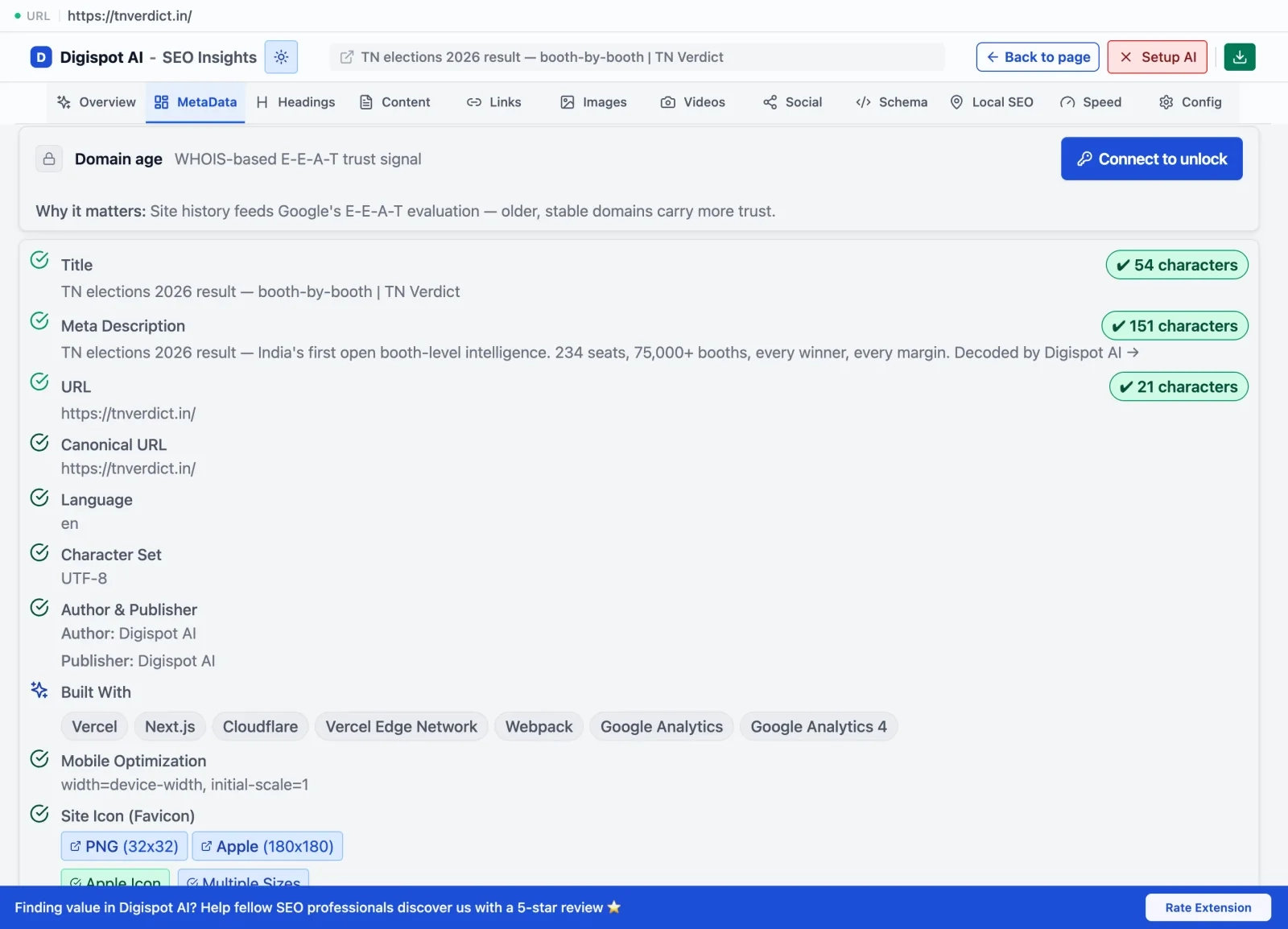
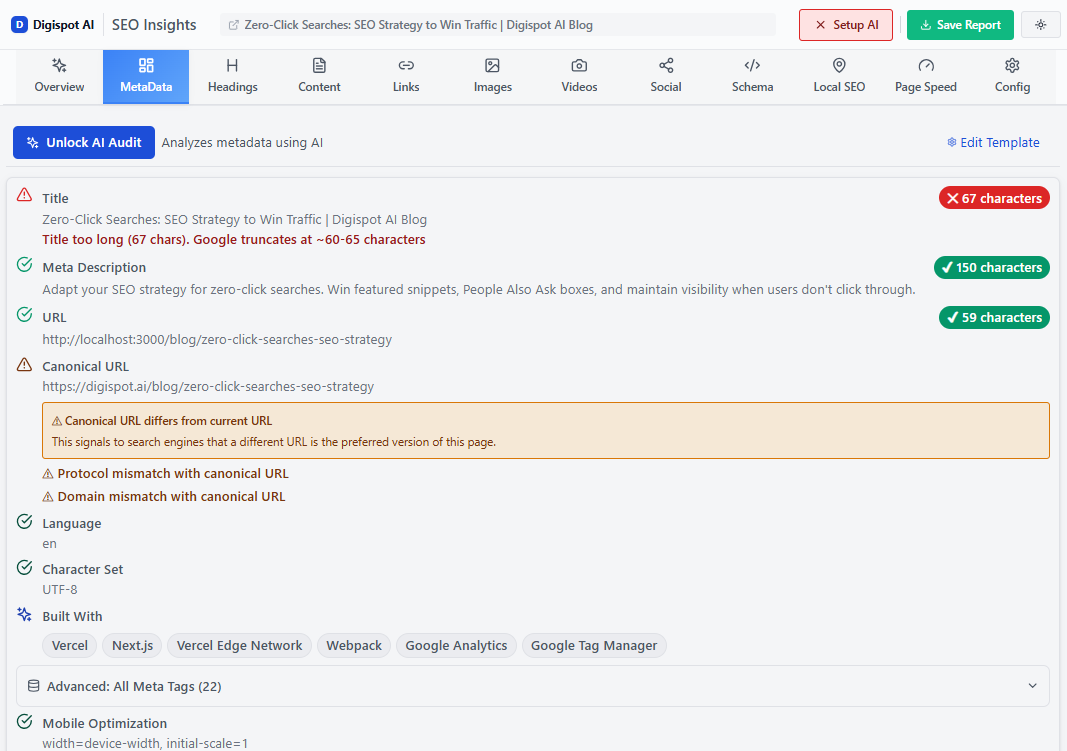
Automated Check: Searching source code manually for hundreds of pages is inefficient. You can get instant SEO insights on any page, including hidden indexation tags, with our free Chrome extension. It flags indexability issues immediately upon page load.
Open the extension's MetaData tab to read the current page's title, meta description, canonical, and robots directives side by side—so a stray noindex in the meta robots line is impossible to miss.
2. The X-Robots-Tag HTTP Header (The Stealth Killer)
If you view the source code and cannot find a <meta> tag, but GSC still reports "Excluded by noindex," the culprit is likely the HTTP header.
This directive is set at the server level (Apache, Nginx) or via backend code (PHP, Python) and is invisible in the HTML.
How to check: You need to inspect the server response headers.
- Open Chrome DevTools (
F12). - Go to the Network tab.
- Refresh the page.
- Click the first resource (the document).
- Look under Response Headers for
x-robots-tag: noindex.
3. JavaScript Injection
Modern websites rely heavily on JavaScript. Sometimes, the raw HTML source looks clean, but a JavaScript framework (like React or Angular) or a rogue Google Tag Manager script injects a noindex tag after the page renders.
This is the trickiest case because Google indexes the rendered DOM, not the raw HTML you see in "View Page Source." So a tag that never appears in the source can still de-index the page. The three usual offenders are: a client-side router that swaps meta tags per route and defaults to noindex, a Tag Manager custom HTML tag that fires site-wide, and a headless CMS field that pushes robots directives into the head via JavaScript.
To diagnose this, use the URL Inspection Tool in GSC:
- Inspect the URL.
- Click Test Live URL.
- View Tested Page > HTML.
- Search for "noindex" in this rendered code.
If the tag is present in the rendered HTML but absent from the raw source, you have confirmed JavaScript injection. To find the script responsible, open Chrome DevTools, disable JavaScript (Command Menu > "Disable JavaScript"), and reload: if the noindex disappears, a script is adding it. From there, audit your GTM container's published tags and any <meta> manipulation in your framework's head-management library (such as React Helmet or Next.js metadata). If you run a framework-rendered site, our JavaScript SEO guide covers how rendering affects indexation in depth.
Step-by-Step Troubleshooting & Fixes
Once you have identified that a page is wrongly excluded, follow these steps to remove the tag.
Scenario A: The "Whole Site" Accident
If your traffic has flatlined and nearly all pages are showing as excluded, you likely have a global setting enabled.
WordPress:
- Go to Settings > Reading.
- Look for "Search Engine Visibility".
- Uncheck "Discourage search engines from indexing this site".
- Save changes.
Shopify:
- Go to Online Store > Preferences.
- Ensure "Limit access to your store with a password" is unchecked (unless you are still in development). Password-protected stores are automatically noindexed.
- If the store is unlocked but individual collections or products are still excluded, check your
theme.liquidfile. Some themes and apps inject{% if template contains 'search' %}<meta name="robots" content="noindex">{% endif %}logic into the<head>—a broad or edited condition here can noindex more than intended. - Review any installed SEO or "hide page" apps. These often add a per-page noindex toggle stored in metafields, and a bulk action can silently flag whole collections.
Scenario B: Plugin Misconfiguration
SEO plugins are powerful, but one wrong click can de-index a whole section of your site.
Yoast SEO:
- Go to the page edit screen.
- Scroll down to the Yoast meta box.
- Expand the Advanced section.
- Ensure "Allow search engines to show this Post in search results?" is set to Yes.
RankMath:
- Open the page editor.
- Click the RankMath icon in the top right.
- Go to the Advanced tab (briefcase icon).
- Ensure the Index checkbox is selected, not No Index.
Scenario C: Developer/Server Headers
If the issue is an X-Robots-Tag and you are not technical, you may need developer assistance.
Apache (.htaccess): Look for lines like this and remove them for the affected pages:
Header set X-Robots-Tag "noindex"
Nginx (nginx.conf): Look for:
add_header X-Robots-Tag "noindex";
If you are managing complex server environments, regular audits are vital. Digispot AI can help you identify and fix these issues automatically with AI-powered audits analyzing 300+ ranking factors, including deep server header analysis.
When "Excluded by Noindex" is Actually Good
Not all "Excluded" statuses are errors. A healthy SEO audit checklist includes verifying that low-value pages are excluded. You should intentionally noindex:
- Thank You Pages: These distort analytics and offer no value to searchers.
- Internal Search Results: Prevents "search results in search results" spam.
- Admin/Login Pages: Security and relevance.
- Taxonomy Archives (sometimes): If you have tags with only one post, they create thin content issues.
- Staging Sites: To prevent duplicate content issues before launch.
If you find pages in this report that should be there, no action is required. The status is simply Google confirming it is following your rules.
Validating the Fix
After removing the rogue tags, you cannot sit and wait. You must prompt Google to recognize the change.
- Clear Caches: If you use caching plugins (WP Rocket, W3 Total Cache) or server-side caching (Varnish, Cloudflare), clear them. Googlebot might still be served the old cached version with the noindex tag.
- Use URL Inspection: Enter the fixed URL in GSC and click "Test Live URL". Ensure the availability says "URL can be indexed".
- Request Indexing: Click the "Request Indexing" button.
- Validate in Bulk: If you fixed a template issue affecting thousands of pages:
- Go to the Pages report in GSC.
- Click on "Excluded by 'noindex' tag".
- Click "Validate Fix".
Google will now prioritize recrawling these URLs. This process is not instant; it can take days for the graph to reflect the recovery.
Advanced Edge Cases
The "Soft" Noindex via Canonicals
While not strictly a "noindex" tag, using a canonical tag that points to a different URL (rel="canonical") tells Google: "Don't index this page; index that one instead."
If you see pages excluded under "Alternate page with proper canonical tag," do not add a "noindex" tag to them. The canonical is sufficient. Mixing canonicals and noindex tags sends conflicting signals (one says "this page is equivalent to X," the other says "do not index this"). If you are unclear on when to reach for a canonical versus a noindex, our guide on what a canonical URL is breaks down the distinction.
Crawl Budget Implications
For large e-commerce sites (10,000+ pages), relying on "noindex" to manage Crawl Budget is inefficient. Google still has to crawl the page to see the noindex tag.
If you have thousands of generated filter pages (e.g., /shop/?color=blue&size=small), using robots.txt disallow rules is often better for saving crawl budget than letting Google crawl them just to find a "noindex" tag.
Schema Markup and Noindex
If a page contains rich structured data but is marked as noindex, Google will ignore the schema. Don't waste time optimizing JSON-LD for pages you don't intend to index. Use the free Schema Markup Generator to ensure your indexed pages have valid, eligible structured data.
Prevention: Automated Monitoring
The most dangerous aspect of the "Excluded by noindex" error is that it is silent. Your site doesn't break; traffic simply evaporates.
Manual checking is impossible for growing sites. You need a system that alerts you when high-value pages drop out of the index.
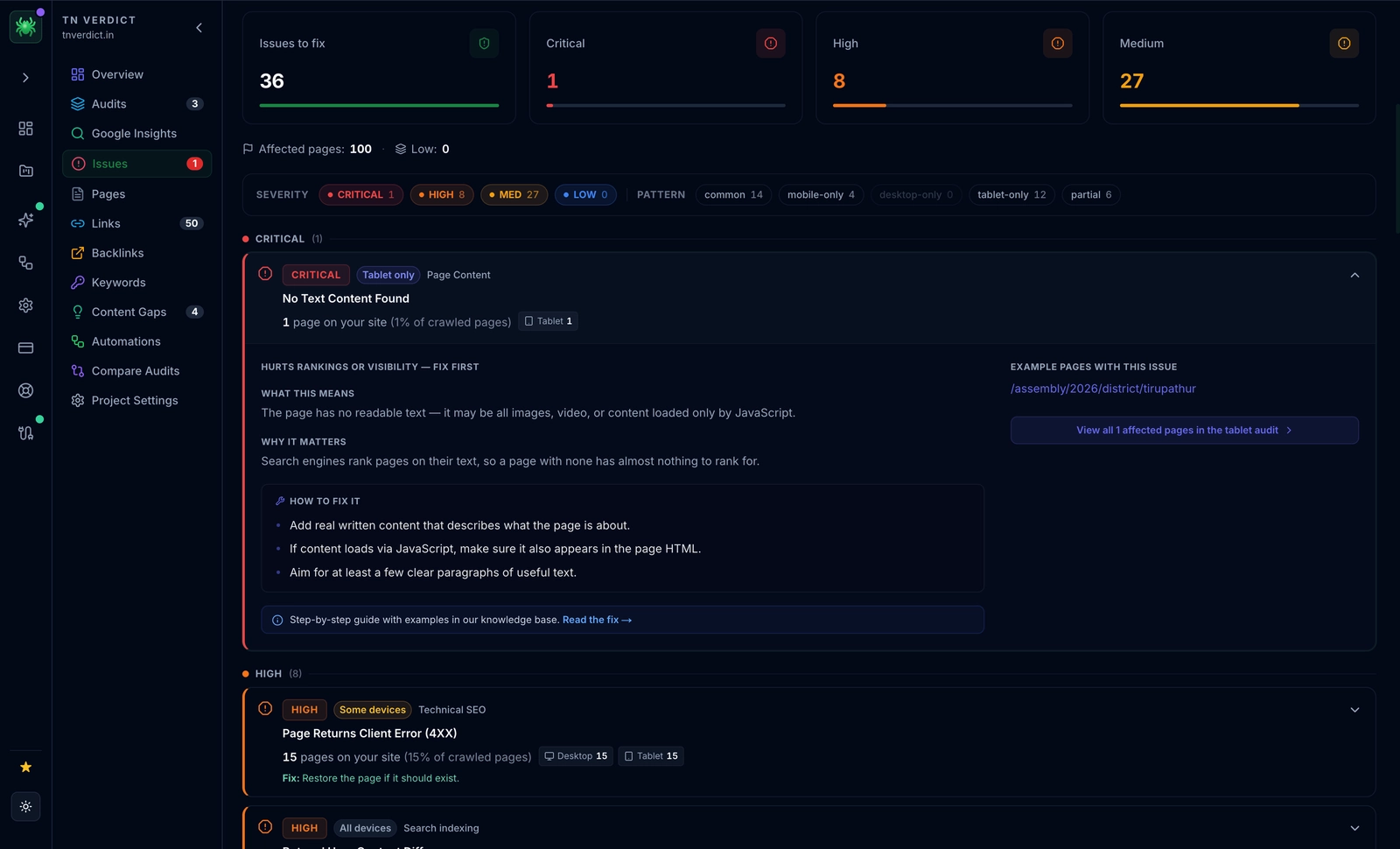
The Digispot AI Spider surfaces exactly this: its Issues dashboard groups problems by severity with fix-first guidance and the affected page count, so unnecessary noindex/meta-robots directives are flagged for you across the whole site instead of one URL at a time.
Best Practices for Prevention:
- Staging Environment Checks: Always scan your staging site for noindex tags before pushing to production. A common disaster occurs when developers copy the database from Staging (set to noindex) to Live.
- Regular Audits: Schedule a monthly technical crawl.
- Monitor GSC Emails: Google sends "Index Coverage" alerts. Do not ignore them.
Ready to improve your search visibility and automate this monitoring? Try Digispot AI for comprehensive website audits. Our platform tracks your indexation status in real-time, alerting you to "noindex" injections before they kill your organic traffic.
Conclusion: Start Improving Your Indexation Today
The "Excluded by noindex tag" status is a double-edged sword. It is a powerful tool for controlling your site's quality signals, but a single misconfiguration can cost you thousands in lost revenue.
Your Action Plan:
- Identify if the exclusion is intentional (admin pages) or accidental (blog posts).
- Use the Digispot Chrome Extension to instantly verify headers and meta tags.
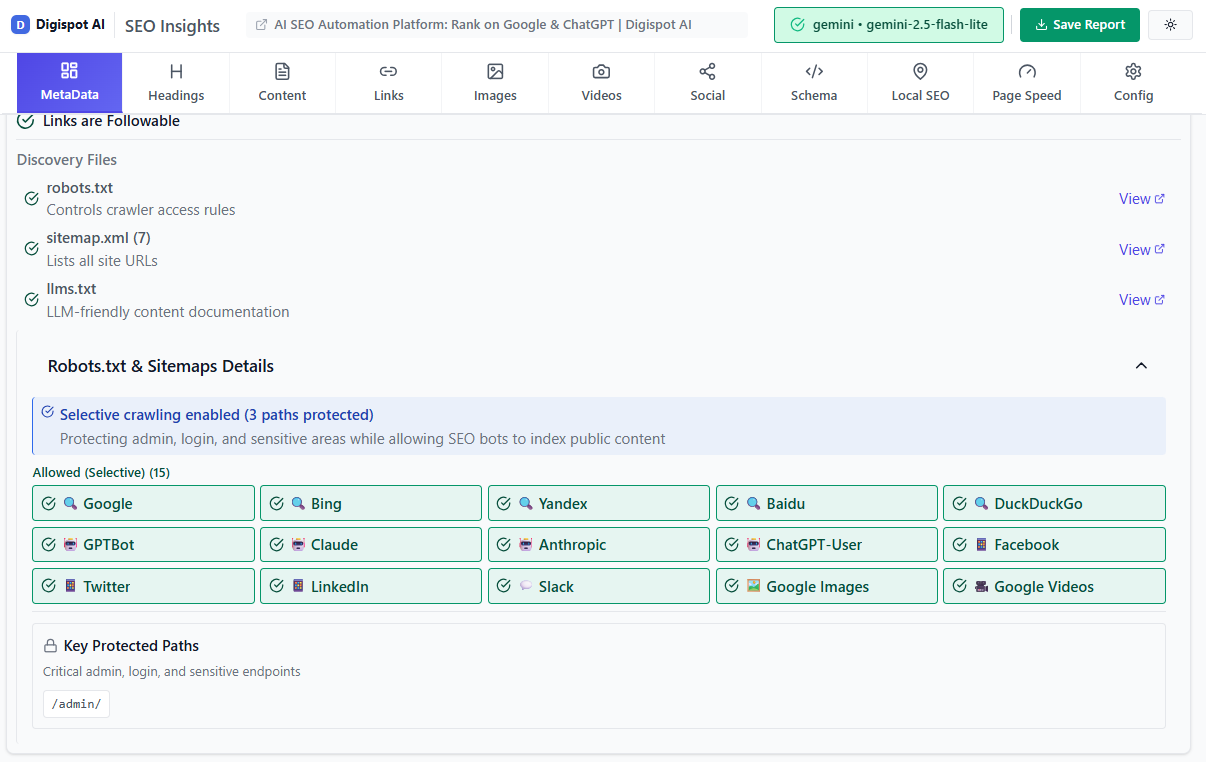
Turn invisible SEO data into clear visuals with our Free Chrome extension
-
Fix the root cause in your CMS settings, plugin configurations, or server headers.
-
Validate the fix in Search Console immediately.
Don't let a simple tag hide your best content from the world. Master your indexation strategy, and you master your visibility.
Related deep-dives
Continue with these closely related guides:
- to submit urls — How to Submit URLs to Google for Indexing (2026 Guide)
- to fix 'page — How to Fix 'Page with Redirect' Errors in Google Search Console
References
Audit any page in seconds
300+ SEO checks including Core Web Vitals, schema markup, meta tags, and AI readiness — trusted by 1000+ SEO experts and marketers.
Frequently Asked Questions
Here are some of our most commonly asked questions. If you need more help, feel free to reach out to us.
Written by
Maya Krishnan
Digital growth expert
Maya is a seasoned expert in web development, SEO, and digital strategy, dedicated to helping businesses achieve sustainable growth online. With a blend of technical expertise and strategic insight, she specializes in creating optimized web solutions, enhancing user experiences, and driving data-driven results. A trusted voice in the industry, Maya simplifies complex digital concepts through her writing, empowering readers with actionable strategies to thrive in the ever-evolving digital landscape.