Fix 'Discovered - Currently Not Indexed' in Search Console
Stop losing traffic to indexing issues. Learn the root causes of 'Discovered - currently not indexed' and follow our guide to get pages ranked.
 Maya Krishnan
You publish a new article, optimize the metadata, and wait for the traffic to roll in. But days pass, and nothing happens. You check Google Search Console (GSC), only to find your URL sitting in the "Excluded" report with the status: Discovered - currently not indexed.
It is one of the most frustrating statuses in SEO. Unlike a 404 error or a manual penalty, this status feels like being waitlisted. Google knows your page is there, but it simply hasn't bothered to visit it yet.
This isn't just a glitch; it's a calculated decision by Google's scheduling algorithms. It means your content is stuck in the queue, often because Googlebot has determined that crawling your URL isn't worth the effort right now, or that doing so might overload your server.
In this guide, I will break down exactly why this happens mechanically and provide a step-by-step framework to move your pages from "Discovered" to "Indexed" and ranking. If you want the end-to-end process first, see our overview of how to index your website on Google.
Key Takeaways
- "Discovered" means uncrawled, not rejected. Google has queued your URL but hasn't visited it, so the fix is about earning a crawl—not editing on-page content you haven't proven Google has seen.
- Internal links are the fastest lever. Adding contextual links from crawled, authoritative pages to orphaned URLs is usually the single most effective way to pull a page out of the queue.
- Protect your crawl budget by pruning waste. Block or remove faceted-navigation variants, session-ID URLs, tag/author archives, and thin auto-generated pages so Googlebot spends its budget on pages that matter.
- Speed and stability matter. Keep TTFB low and eliminate 5xx errors; a fragile or slow server forces Googlebot to throttle crawling and defer your pages.
- Don't spam "Validate Fix" or "Request Indexing." Make the real change first, wait for Google to recrawl the linking pages, and use these tools once—patience beats repeated resubmission.
Decoding the "Discovered - Currently Not Indexed" Status
To fix the problem, you must first understand the mechanism behind it. Google's documentation states that this status means "The page was found by Google, but not crawled yet."
Here is the technical sequence of events:
- Discovery: Google finds a link to your URL (via a sitemap, internal link, or external backlink).
- Queueing: The URL is added to the Googlebot crawl queue.
- Deferral: When the scheduler reaches your URL, it decides to skip it.
- Rescheduling: The URL remains in the database to be crawled at a later, unspecified date.
The Difference Between "Discovered" and "Crawled" Not Indexed
These two statuses are often confused, but the distinction is vital for your strategy.
- Discovered - currently not indexed: Googlebot has not visited the page. The issue is usually related to crawl budget, server capacity, or low perceived value based on URL patterns.
- Crawled - currently not indexed: Googlebot has visited the page but chose not to index it. This is almost always a content quality or duplicate content issue, which we cover separately in our guide to fixing 'Crawled - currently not indexed'.
If you are seeing "Discovered," you are dealing with a pre-access filter. Google is rationing its resources, and your page didn't make the cut for this round.
Why Google Skips Your Content: Root Causes
Why would Google discover a page but refuse to read it? It comes down to efficiency. The web is infinite, but Google's computing power—while massive—is finite. They prioritize pages they predict will be high-value and ignore those they predict will be low-value or technically problematic.
1. Crawl Budget Constraints
Crawl budget is the number of pages Googlebot can and wants to crawl on your site. If your site has 10,000 pages but Google only allocates a budget of 500 crawls per day, new pages will inevitably get backlogged in the "Discovered" state.
Common budget wasters include:
- Faceted navigation creating millions of URL variations (e.g., filters for color, size, price).
- Session identifiers in URLs.
- Duplicate pages accessible via HTTP and HTTPS or www and non-www.
2. Poor Internal Linking Structure
Google uses internal links as a proxy for importance. If a page is only linked from your XML sitemap and nowhere else on your site (an "orphan page"), Google's scheduler assumes it isn't important. If you don't link to it, why should they crawl it?
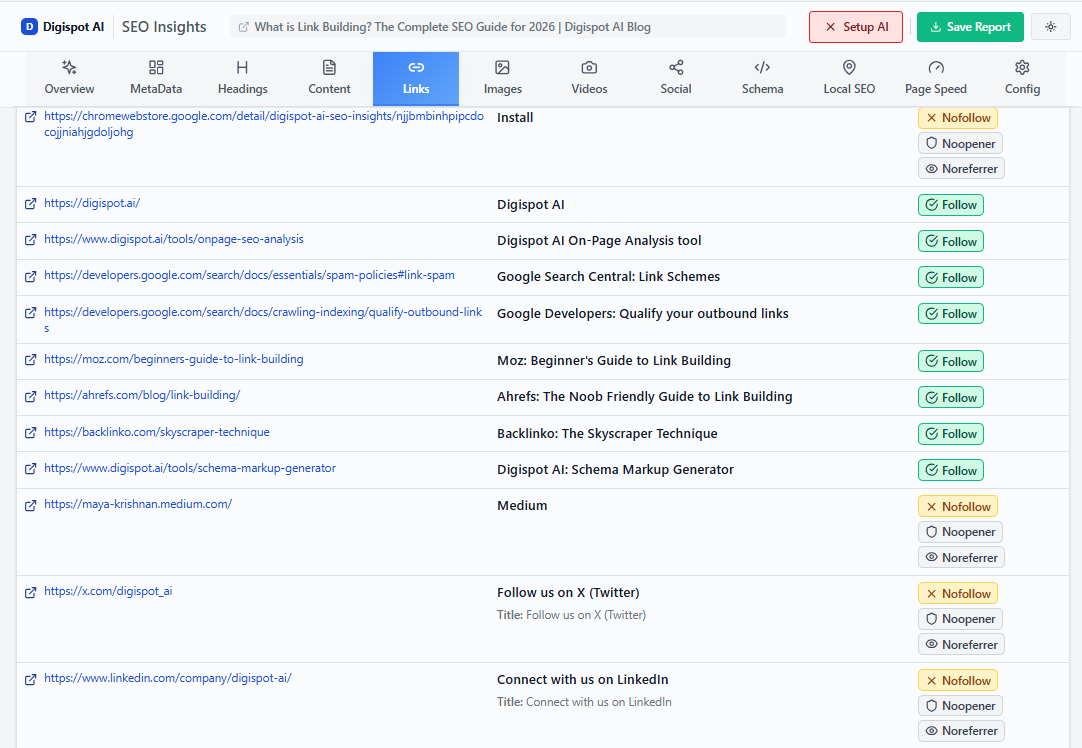
Digispot AI can help you identify these orphan pages automatically. Our platform visualizes your site architecture, highlighting isolated pockets of content that Googlebot is likely ignoring.
3. Content Quality Prediction
Even before crawling, Google makes heuristic guesses about page quality. If your new URL follows a pattern similar to previous low-quality pages on your site, Google might deprioritize it.
For example, if you programmatically generate 1,000 location pages like /service-city-1, /service-city-2, and the first ten Google crawls are thin content, it will relegate the remaining 990 to the "Discovered - currently not indexed" pile.
4. Server Performance
If your server response time (Time to First Byte - TTFB) is slow, Googlebot will slow down its crawling to avoid crashing your site. If the crawler slows down, it gets through fewer pages in the queue, leaving the rest as "Discovered."
Step 1: Technical Audit and Server Health
Before touching the content, ensure your infrastructure allows Google to do its job. If the door is locked, Googlebot can't come in.
Analyze Your Server Logs
Server logs are the only source of truth for exactly when and how Googlebot hits your site. Search Console's crawl stats are sampled and aggregated; raw logs show every request, the exact user agent, the status code returned, and the response time. When a page is stuck in "Discovered," the first question to answer is simple: is Googlebot even reaching it, and what happens when it does?
Pull your access logs (found via cPanel, your CDN dashboard, or /var/log/nginx/access.log on most Linux stacks) and filter for the verified Googlebot user agent. Then look for three patterns:
- Frequency: How often does Googlebot request pages in the affected section? If it visits your homepage hourly but touches deep category pages once a month, that crawl rationing is exactly why new URLs sit undiscovered.
- Response times: If your HTML takes more than 600ms to generate, you are in the danger zone. Aim for under 200ms. Slow responses cause Google to lower your crawl rate to protect your server.
- Error rates: A high frequency of 500 or 503 errors tells Google your server is fragile, and it will back off crawling to avoid making things worse.
For a repeatable process—including how to verify Googlebot by reverse DNS and how to parse large log files—follow our walkthrough on SEO log file analysis.
Action: If you are on a shared hosting plan and hitting resource limits, upgrade to a dedicated server or a high-performance cloud solution. If Googlebot is crawling frequently but your target pages never appear in the logs, the problem is not the server—it is that nothing is linking to those pages strongly enough to earn a visit.
Prune Low-Value URLs
Often, the fix for "Discovered - currently not indexed" isn't to index the pages, but to delete them. If you have thousands of auto-generated tag pages, archive pages, or internal search result pages clogging up the queue, block them. Every crawl Googlebot spends on a worthless ?sort=price variation is a crawl it does not spend on the page you actually want indexed.
Use your robots.txt file to disallow crawling of low-value URL parameters, and configure it carefully—a single overly broad Disallow rule can accidentally hide your money pages. Our robots.txt setup guide covers the exact syntax for blocking parameters without cutting off valuable sections.
A few rules of thumb for what to prune versus keep:
- Block, don't noindex, at crawl scale. For millions of parameter URLs,
robots.txtstops the crawl before it starts. Usenoindexonly for pages you still want Google to fetch but not index. - Delete or 410 truly dead pages. Returning a clean 410 (Gone) tells Google to drop the URL permanently and stop rechecking it, reclaiming budget faster than a soft redirect.
- Consolidate near-duplicates with canonical tags rather than letting Google discover and queue each variant separately.
On large ecommerce or publishing sites, this pruning is frequently the difference between a healthy index and a permanent backlog—see our deeper playbook on crawl budget optimization for large sites.
Step 2: Optimizing Internal Linking Structure
This is often the most effective fix. You need to build a bridge to the unindexed pages.
Eliminate Orphan Pages
Every indexable page on your site should have at least one incoming internal link from related content. The closer a page is to the homepage (fewer clicks), the more likely it is to be crawled.
Strategy:
- Identify your "Discovered" URLs.
- Find high-authority pages on your site that are topically related.
- Add contextual internal links from the authority pages to the "Discovered" pages.
For a deeper dive into architecture, read our guide on internal linking strategies to ensure you are distributing link equity effectively.
Use Breadcrumbs and Clusters
Organize your content into topic clusters. A "hub" page should link to all "spoke" pages, and spoke pages should link back to the hub. This tight interlinking creates a crawlable mesh that traps Googlebot within the cluster, increasing the likelihood of deep crawling. If you are building this out from scratch, our internal linking strategy guide explains how to choose anchor text and prioritize which pages pass equity where.
Step 3: Improving Content Quality Signals
If Google predicts your content is low value, it won't prioritize the crawl. You need to signal quality across the domain.
Combatting Thin Content
"Thin content" refers to pages with little unique value. If you run an ecommerce site, simply copying the manufacturer's description isn't enough.
- Add Unique Value: Include expert reviews, unique specs, or user-generated content.
- Avoid Near-Duplicates: If you have three products that vary only by color, canonicalize them to a master product page rather than letting Google discover three separate URLs.
Learn more about evaluating your content's depth in our E-E-A-T SEO guide.
The "Crawl Budget" Heuristic
Google assigns a "crawl budget" based on the popularity and authority of your site. If you are a new site, your budget is small. If you publish 500 posts a day but have zero backlinks, you are exceeding your budget.
Solution: Slow down your publishing velocity until indexing catches up. Focus on quality over quantity.
Step 4: Sitemap Management
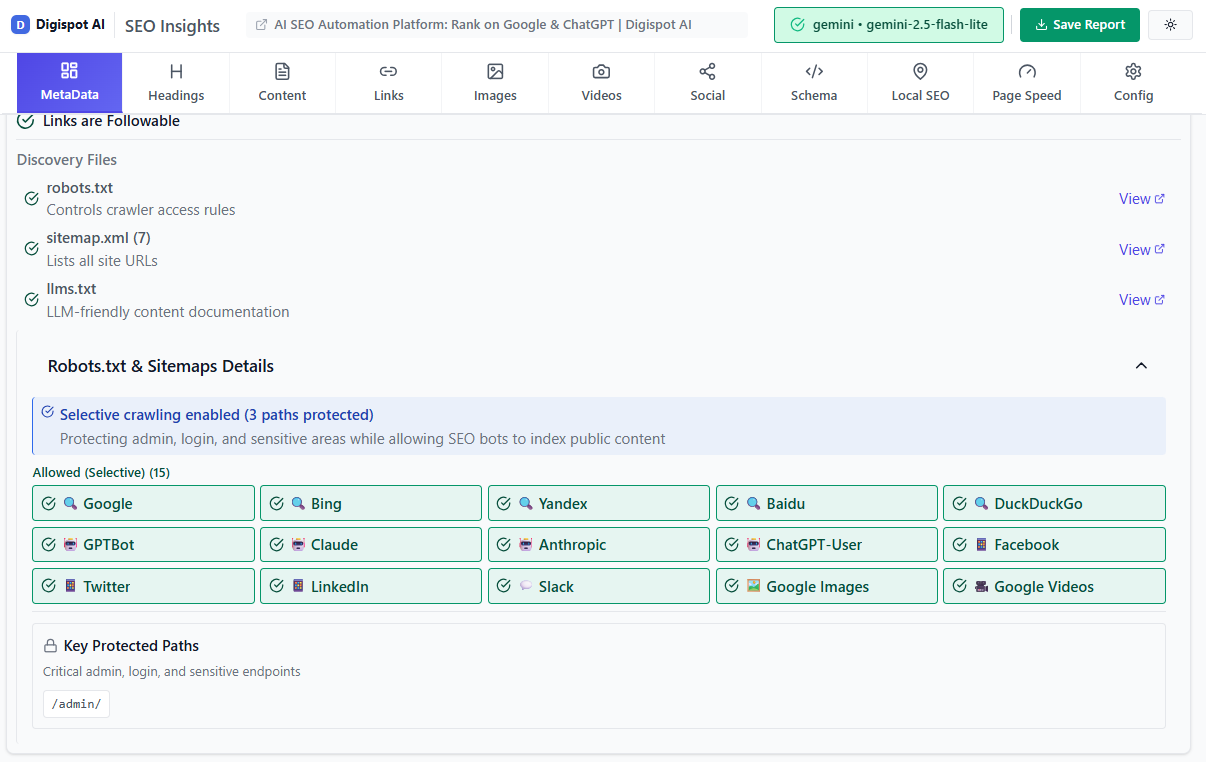
Your XML sitemap is the map you hand to Google. If the map is messy, Google loses trust in it.
Clean Your Sitemaps
- Remove Non-Indexable URLs: Your sitemap should only contain 200 OK, canonical, indexable URLs. Remove redirects (301s), 404s, and pages with
noindextags. - Split Large Sitemaps: If you have a sitemap with 50,000 URLs, break it into smaller, categorized sitemaps (e.g.,
product-sitemap.xml,blog-sitemap.xml). This helps you diagnose which section of your site suffers from indexing issues.
The "Last Modified" Date
Ensure your <lastmod> tag is accurate. If you update the date but the content hasn't changed, Google will learn to ignore your timestamps. Only update this tag when significant changes occur.
When to Use "Validate Fix" in GSC
Once you have implemented internal links, improved server speed, or pruned thin content, you might be tempted to hit "Validate Fix" immediately.
Wait.
Give Google a few days to process the changes naturally. If you fixed internal linking, wait for Google to recrawl the linking page first. Once you see movement, click "Validate Fix."
This button triggers a background process where Google checks a sample of the affected URLs. It is not an instant request button, but it helps track progress.
Pro Tip: For urgent pages, use the URL Inspection Tool to manually "Request Indexing." Note that there is a daily quota for this, so use it sparingly for your most critical pages.
Advanced Solution: Analyzing the Render Queue
Sometimes, "Discovered - currently not indexed" is a symptom of JavaScript-heavy websites.
If your site relies entirely on client-side rendering (CSR), Google has to perform a two-stage crawl:
- Crawl the HTML (fast).
- Render the JavaScript (resource-intensive).
The rendering queue is much slower than the crawl queue. If Google sees a heavy JS payload, it might defer the crawl entirely, resulting in the "Discovered" status.
Fix: Implement Dynamic Rendering or Server-Side Rendering (SSR). This serves a pre-rendered HTML version to Googlebot, bypassing the expensive rendering stage and speeding up indexing. Our JavaScript dynamic rendering guide walks through when each approach is appropriate and how to verify Google sees your fully rendered content.
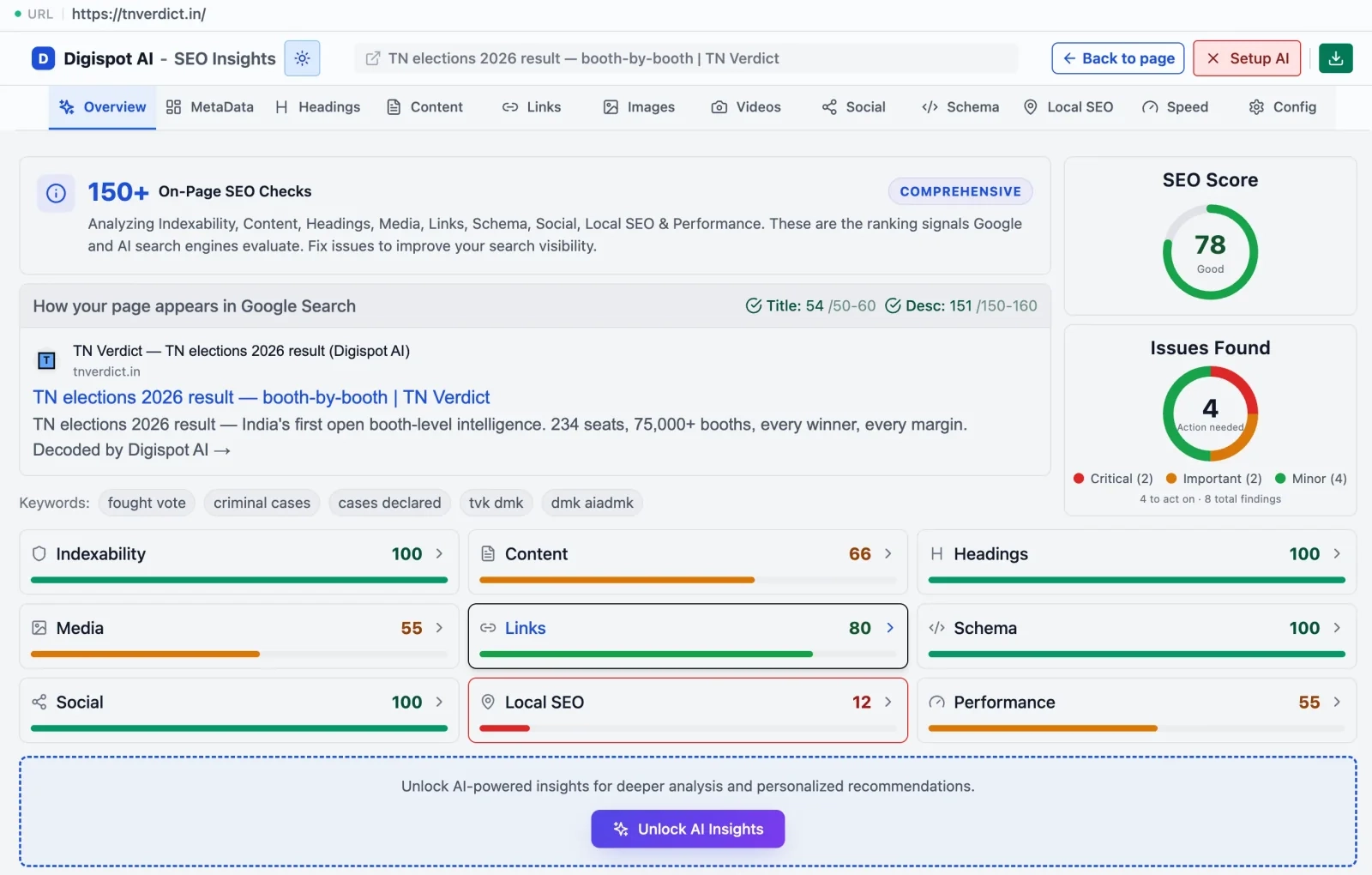
Get instant SEO insights on any page, including rendering checks, with our free Chrome extension. It helps you see exactly what Googlebot sees.
Common Scenarios and Fixes
Let's look at specific scenarios we see often at Digispot AI and how to resolve them.
Scenario A: New Ecommerce Store with 5,000 Products
The Issue: You launched a new store, uploaded a CSV of 5,000 products, and only 200 are indexed. 4,800 are "Discovered - currently not indexed." The Fix: Your domain authority is too low to support 5,000 pages.
- Prioritize: Create a "Best Sellers" sitemap and submit only your top 500 products.
- Consolidate: Canonicalize variants.
- Build Authority: Focus on getting backlinks to category pages to increase overall domain authority.
Scenario B: The "Zombie" Blog
The Issue: An old blog has thousands of tags and author archives that are "Discovered" but not indexed. The Fix: These are low-value pages wasting budget.
- Noindex: Add a
noindextag to tag archives and author pages if they don't bring traffic. - Robots.txt: Disallow crawling of internal search parameters.
- Delete: Remove ancient, thin posts that serve no purpose.
Scenario C: Large Site Migration
The Issue: After moving domains, new URLs are discovered but not indexed. The Fix: Google is still processing the redirects.
- Check Redirect Chains: Ensure 301s are direct (A -> B), not chained (A -> B -> C).
- Update Backlinks: Reach out to major backlink sources to update links to the new domain directly.
Monitoring Your Progress
Fixing indexing issues is not an overnight task. It requires consistent monitoring.
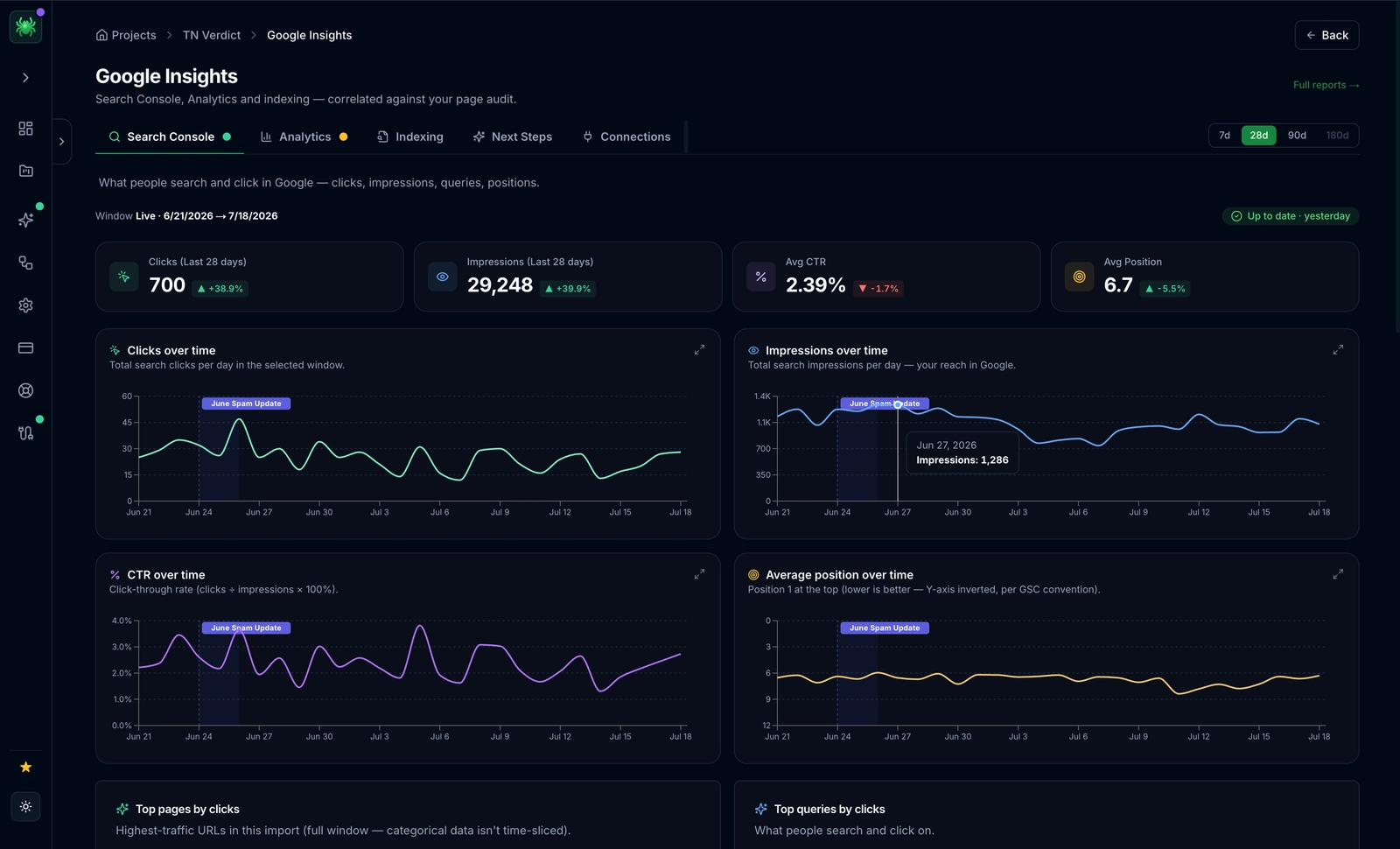
- Weekly GSC Checks: monitor the "Pages" report. You want to see the "Discovered" count decreasing and "Indexed" count increasing.
- Log File Analysis: Ensure Googlebot activity is increasing on the sections you optimized.
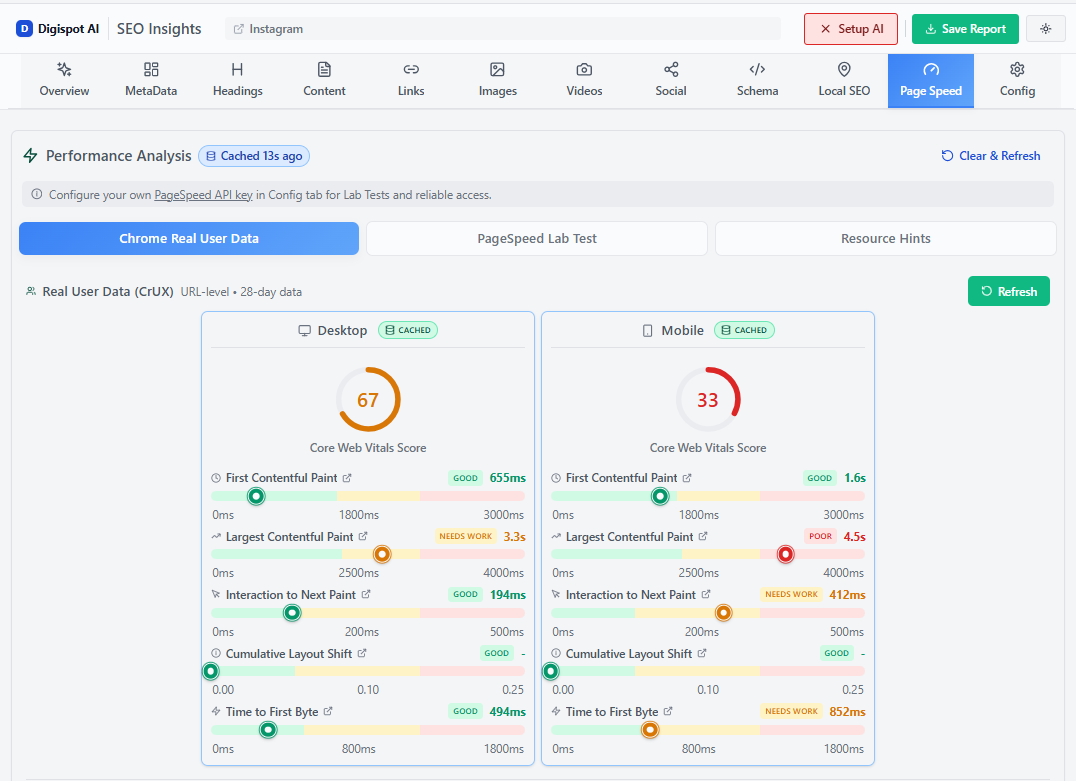
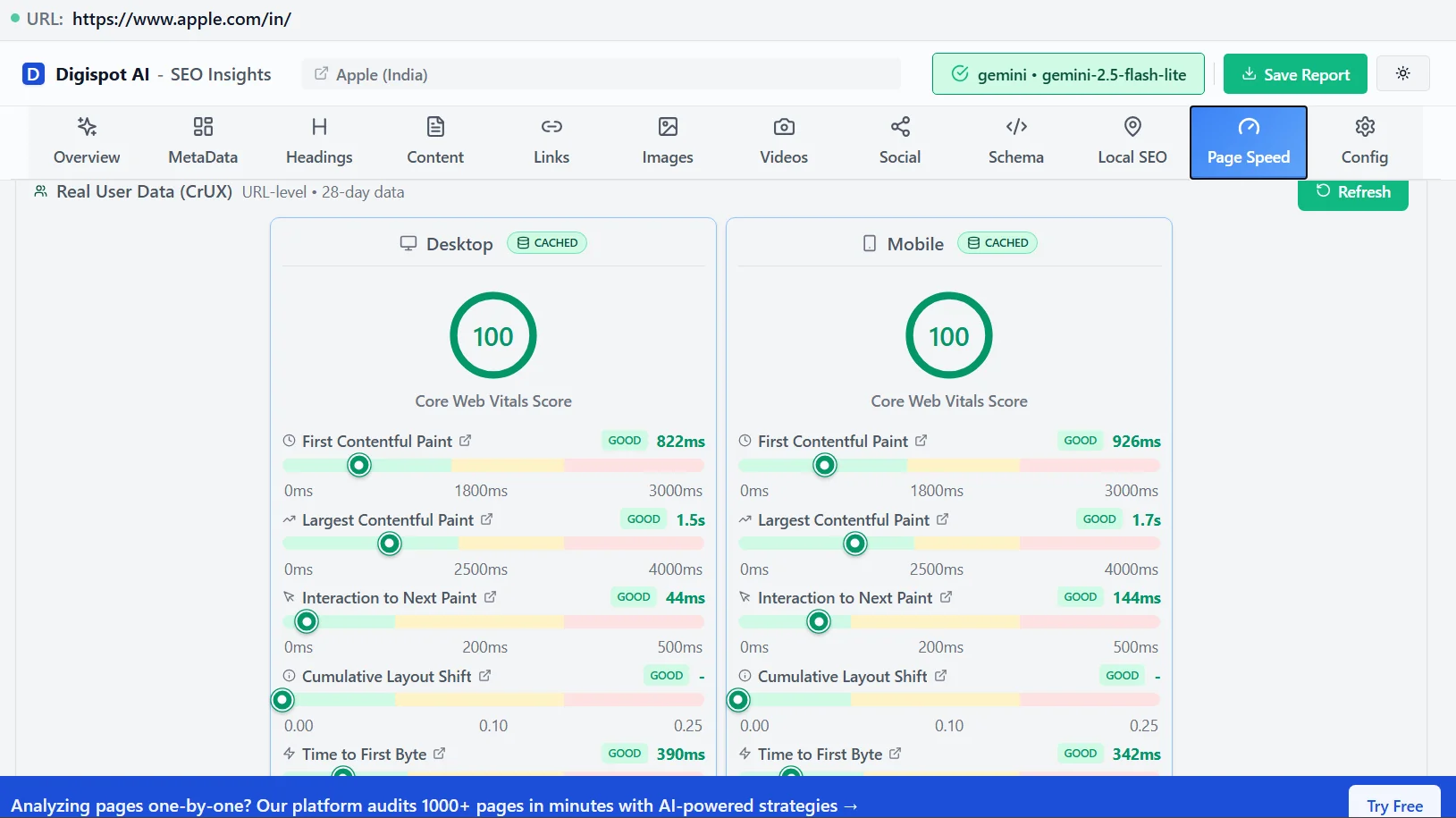
- Core Web Vitals: Keep an eye on performance metrics. A faster site is a more crawlable site. Check our guide on Core Web Vitals for optimization tips.
Start Improving Your Indexation Today
The "Discovered - currently not indexed" status is a warning light on your dashboard. It tells you that your ambition has outpaced your infrastructure or authority. By respecting crawl budget, ensuring robust internal linking, and maintaining high server performance, you can clear the backlog.
Don't let your content sit invisible in the queue.
Ready to automate your technical SEO audits? Try Digispot AI for comprehensive website audits. Our AI-driven platform identifies crawl bottlenecks, visualizes your link structure, and provides actionable recommendations to get your pages indexed and ranking.
Related deep-dives
Continue with these closely related guides:
- excluded by noindex tag — Excluded by Noindex Tag: Troubleshooting Guide & Fixes (2026)
- to fix 'page — How to Fix 'Page with Redirect' Errors in Google Search Console
- soft 404 errors — Soft 404 Errors: How to Find and Fix Them for Better Rankings
References
Audit any page in seconds
300+ SEO checks including Core Web Vitals, schema markup, meta tags, and AI readiness — trusted by 1000+ SEO experts and marketers.
Frequently Asked Questions
Here are some of our most commonly asked questions. If you need more help, feel free to reach out to us.
Written by
Maya Krishnan
Digital growth expert
Maya is a seasoned expert in web development, SEO, and digital strategy, dedicated to helping businesses achieve sustainable growth online. With a blend of technical expertise and strategic insight, she specializes in creating optimized web solutions, enhancing user experiences, and driving data-driven results. A trusted voice in the industry, Maya simplifies complex digital concepts through her writing, empowering readers with actionable strategies to thrive in the ever-evolving digital landscape.