401 vs 403 Errors: SEO Impact & How to Fix Them
Learn the key differences between 401 and 403 HTTP errors. Understand their SEO impact, causes, and fixes for better website indexing.
 Maya Krishnan
Every click your users make initiates a conversation between their browser and your server. Most of the time, this dialogue is invisible, resulting in a seamless page load. However, when that conversation breaks down, the server responds with an HTTP error code. While a "404 Not Found" is the most recognizable error to the average user, technical SEOs know that 401 and 403 errors are far more insidious because they deal with permissions rather than just missing content.
For website owners, confusing an HTTP 401 Unauthorized error with an HTTP 403 Forbidden error can lead to wasted hours of troubleshooting. More importantly, leaving these errors unresolved on public-facing pages acts as a brick wall to search engines. If Googlebot, Bingbot, or AI crawlers like GPTBot cannot access your content, you cannot rank. Period. Clearing these access errors is a prerequisite for getting your website indexed on Google.
This guide breaks down the mechanical differences between 401 and 403 errors, analyzes their specific impact on your technical SEO performance, and provides actionable workflows to detect and fix them. Whether you are a developer configuring server environments or a marketer trying to recover lost traffic, understanding these codes is essential for maintaining a healthy site architecture.
Key Takeaways
- 401 is an identity problem, 403 is a permission problem. A 401 says "authenticate yourself"; a 403 says "access denied even if you are authenticated."
- Both errors block Googlebot on public pages. If a page that should rank returns 401 or 403, it cannot be crawled, indexed, or benefit from any backlinks pointing to it.
- Intentional 401/403 on private areas (like
/wp-admin/) is healthy. The danger is when these codes leak onto public-facing content, often after a migration or a misconfigured firewall. - Most fixes are server-side: correct file permissions (
644/755), clean.htaccessdeny rules, and firewall/CDN allowlists for verified crawlers. - Monitor proactively with Google Search Console's page indexing report and server log analysis so you catch access errors before traffic drops.
What Exactly Are HTTP Error Codes?
Before dissecting the specific errors, it is vital to understand the "handshake" process. HTTP status codes are three-digit responses from the server that classify the result of a browser's request. They are the health indicators of your website's infrastructure.
The five core categories are:
- 1xx (Informational): The request was received; the process is continuing.
- 2xx (Success): The standard "200 OK." The request was successfully received, understood, and accepted. This is the goal for all primary content.
- 3xx (Redirection): The resource has moved. Further action is needed (e.g., 301 permanent redirect or 302 temporary redirect).
- 4xx (Client Error): The server thinks the client (browser or bot) made a mistake. This includes bad syntax, missing authentication, or requesting restricted resources. This is the home of 401 and 403 errors.
- 5xx (Server Error): The server failed to fulfill a valid request due to an internal crash or configuration failure (e.g., 500 Internal Server Error).
For a deep dive into maintaining a healthy site structure, effective on-page SEO best practices rely heavily on minimizing 4xx and 5xx errors to ensure smooth crawling.
Understanding HTTP 401 Unauthorized: The "Who Are You?" Error
The HTTP 401 Unauthorized error is fundamentally an identity crisis. When a server issues a 401 code, it is saying, "I do not know who you are, and this resource requires identification."
What Does 401 Unauthorized Mean?
Technically, a 401 status indicates that the request has not been applied because it lacks valid authentication credentials. The server expects an Authorization header field in the request. If you haven't logged in, or if your session has timed out, the server rejects the request.
Unlike other errors, a 401 is essentially a prompt. It is often accompanied by a WWW-Authenticate header response, which tells the browser specifically how to authenticate (e.g., Basic Auth, Digest Auth, or Bearer Token).
Common Technical Causes of 401 Errors
- Failed Login Attempts: The most straightforward cause. The user (or bot) entered the wrong username or password.
- Restricted URL Access: Users trying to access a deep link (e.g.,
/dashboard/profile) without an active session cookie. - Misconfigured .htaccess/htpasswd: On Apache servers, if you password-protect a directory using
.htpasswdbut configure the path incorrectly in.htaccess, valid credentials may be rejected. - Staging Site Leaks: Developers often password-protect staging environments (e.g.,
staging.yoursite.com). If internal links on your live site point to these staging URLs, users will hit 401 errors. - Security Plugin Overreach: In ecosystems like WordPress, security plugins (e.g., Wordfence, iThemes) may block requests that look suspicious, sometimes triggering a 401 challenge instead of a 403 block.
How to Fix a 401 Unauthorized Error
Resolving a 401 error depends on whether you are the user trying to access content or the webmaster fixing the site.
For Users:
- Verify Credentials: Ensure caps lock is off and credentials are current.
- Clear Cache & Cookies: Old session tokens stored in your browser can conflict with new server-side session IDs.
- Reload the Page: Simple connection hiccups can sometimes drop the authentication header.
For Webmasters (Server-Side Fixes):
- Audit Your .htaccess File: Look for directives like
AuthType,AuthName, orRequire valid-user. Ensure the file path to your.htpasswdfile is absolute, not relative. - Check Plugin Conflict: Disable security or membership plugins one by one. If the 401 disappears, check the plugin's "Access Control" settings.
- Review URL Patterns: Ensure you aren't linking to a development URL that requires a login.
- Flush DNS: If you recently migrated servers, DNS propagation issues can sometimes cause authentication mismatches.
Impact of 401 Unauthorized on SEO
Context is everything with 401 errors.
- Intended 401s (Good): It is perfectly acceptable for an admin panel (
/wp-admin/) or a user account page to return a 401 to Googlebot. You do not want Google indexing your login screens or private member data. - Unintended 401s (Bad): If a public blog post or product page returns a 401, Googlebot is locked out. It cannot crawl the text, see the images, or follow links. The page is effectively invisible.
Pro Tip: If you see 401 errors spiking in Search Console, check if you accidentally enabled "Maintenance Mode" or "Coming Soon" mode on your site without whitelisting search crawlers.
Understanding HTTP 403 Forbidden: The "You're Not Allowed Here" Error
The HTTP 403 Forbidden error is harsher. If 401 is a bouncer asking for ID, 403 is a bouncer pointing at a "No Trespassing" sign. Identification won't help you; the server knows who you are (or doesn't care) and is explicitly refusing the request.
What Does 403 Forbidden Mean?
A 403 status code means the server understands the request but refuses to authorize it. This is a permission issue, not an authentication issue. Even if you log in with the correct password, if your user role doesn't have "Read" access to that specific file or directory, you will get a 403.
Common Technical Causes of 403 Errors
- Incorrect File Permissions (Chmod): This is the #1 cause on Linux/Unix servers. Files usually require
644permissions (Read/Write for owner, Read for everyone else) and folders require755. If a folder is set to700(Owner only), the web server (which runs as a specific user) cannot read the files to serve them to the public. - Empty Directory Browsing: If a user visits
yoursite.com/images/and there is noindex.htmlorindex.phpfile, and the server has "Directory Browsing" turned off (a security best practice), it returns a 403. - IP Blocking & Geo-Fencing: You may have configured your firewall or CDN (like Cloudflare) to block traffic from specific countries or IP ranges to prevent spam. If a legitimate user falls into that range, they get a 403.
- WAF (Web Application Firewall) Rules: Strict firewall rules might interpret a legitimate SEO crawler or a user refreshing a page too quickly as a DDoS attack, triggering a temporary 403 block.
- Corrupt .htaccess File: A single syntax error in your
.htaccessfile, specifically in thedenyrules, can lock out the entire world. - Hotlink Protection: If you prevent other sites from embedding your images, requests for those images from unauthorized domains will return a 403.
How to Fix a 403 Forbidden Error
Troubleshooting 403s often requires FTP or SSH access to your server.
-
Fix File Permissions:
- Connect via FTP client (like FileZilla).
- Right-click the problematic folder/file and select File Permissions.
- Directories: Set to
755. - Files: Set to
644. - Warning: Never set permissions to
777(Open to everyone) as this is a massive security risk.
-
Inspect the .htaccess File: Look for lines starting with
Order Deny,AlloworDeny from all. If you seeDeny from allat the root level, you have blocked access to the entire site. Remove or comment out these lines to test. -
Check Index Files: Ensure every public directory has an
index.htmlorindex.phpfile. If not, create a blankindex.htmlfile to prevent directory listing attempts from triggering errors. -
Review CDN/Firewall Logs: If you use Cloudflare or Sucuri, check their firewall events log. You might find you are inadvertently blocking a specific ISP or User-Agent.
Get instant SEO insights on any page, including status code verification, with our free Chrome extension. It allows you to see the header response in real-time without digging into developer tools.
Impact of 403 Forbidden on SEO
A 403 error on a public page is a "stop" sign for SEO.
- Crawl Budget Wastage: When Googlebot encounters a 403, it notes the error. If it encounters many 403s, it may decide your site is low quality or unstable and reduce your crawl rate. This means your fresh content takes longer to get indexed.
- De-indexing: A persistent 403 tells Google, "Access to this content is forbidden." Google will eventually drop the URL from its index completely.
- Link Equity Evaporation: Backlinks pointing to a 403 page are useless. They do not pass PageRank because the target page cannot be resolved.
Note on "Soft 403s": Sometimes, a server is configured to show a "Access Denied" page but sends a 200 OK status code in the background. This is a "Soft 403" (similar to a soft 404 error). This is dangerous because Googlebot might index the "Access Denied" error message as the actual content of your page. Always ensure your error pages return the correct HTTP header.
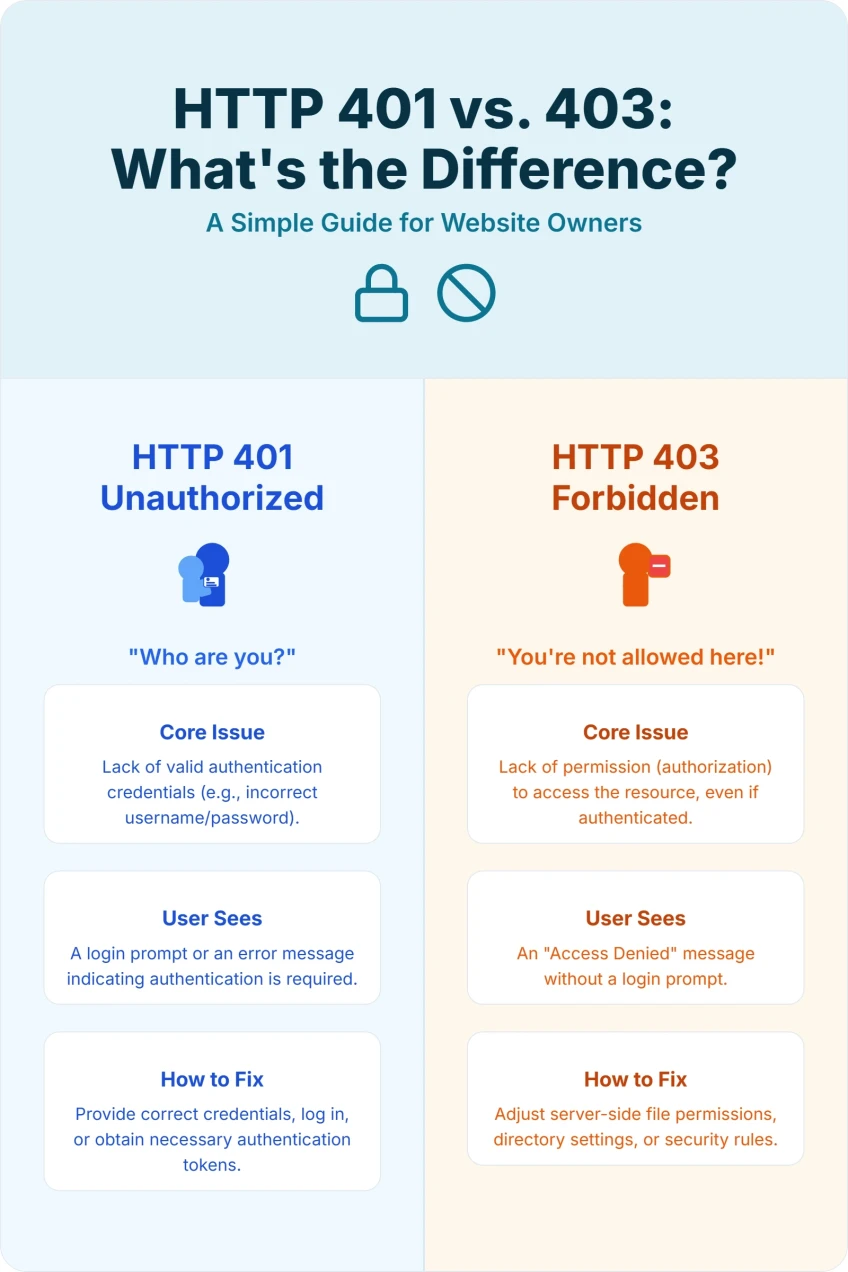
401 vs. 403: The Key Differences at a Glance
While both errors relate to access denial, their underlying reasons and the actions required to resolve them are distinct. Understanding these differences is crucial for effective troubleshooting.
| Feature | HTTP 401 Unauthorized | HTTP 403 Forbidden |
|---|---|---|
| Meaning | Authentication required, credentials missing/invalid. | Authorization denied, even if authenticated. |
| Core Issue | "Who are you?" - Identity issue. | "You're not allowed here." - Permission issue. |
| Solution Type | Provide correct login credentials/authentication. | Adjust server permissions, file access rules, or IP blocks. |
| User Action | Log in, provide password, correct credentials. | No user action can resolve it; server-side fix needed. |
| Server Response | Often includes a WWW-Authenticate header. | No authentication prompt; simply denies access. |
| SEO Impact (on public pages) | Severe: Googlebot cannot access due to lack of authentication. | Severe: Googlebot explicitly blocked from accessing. |
| Typical Use Case | Login pages, API access requiring a token. | Restricted folders, IP blacklists, security rule blocks. |
Why These Errors Matter for Your Website and SEO
Ignoring 401 and 403 errors can have profound negative consequences for your website's performance and its ability to attract organic traffic. It is not just about technical correctness; it is about revenue and reputation.
1. User Experience (UX) Degradation
Nothing frustrates a user more than clicking a search result expecting an answer, only to be met with a "Forbidden" message. This results in an immediate "pogo-stick" effect—the user hits the back button and chooses a competitor. This signals to Google that your result was not relevant or functional, hurting your rankings further. For more on how UX signals impact rankings, review our Core Web Vitals SEO guide.
2. Crawlability and Indexability Issues
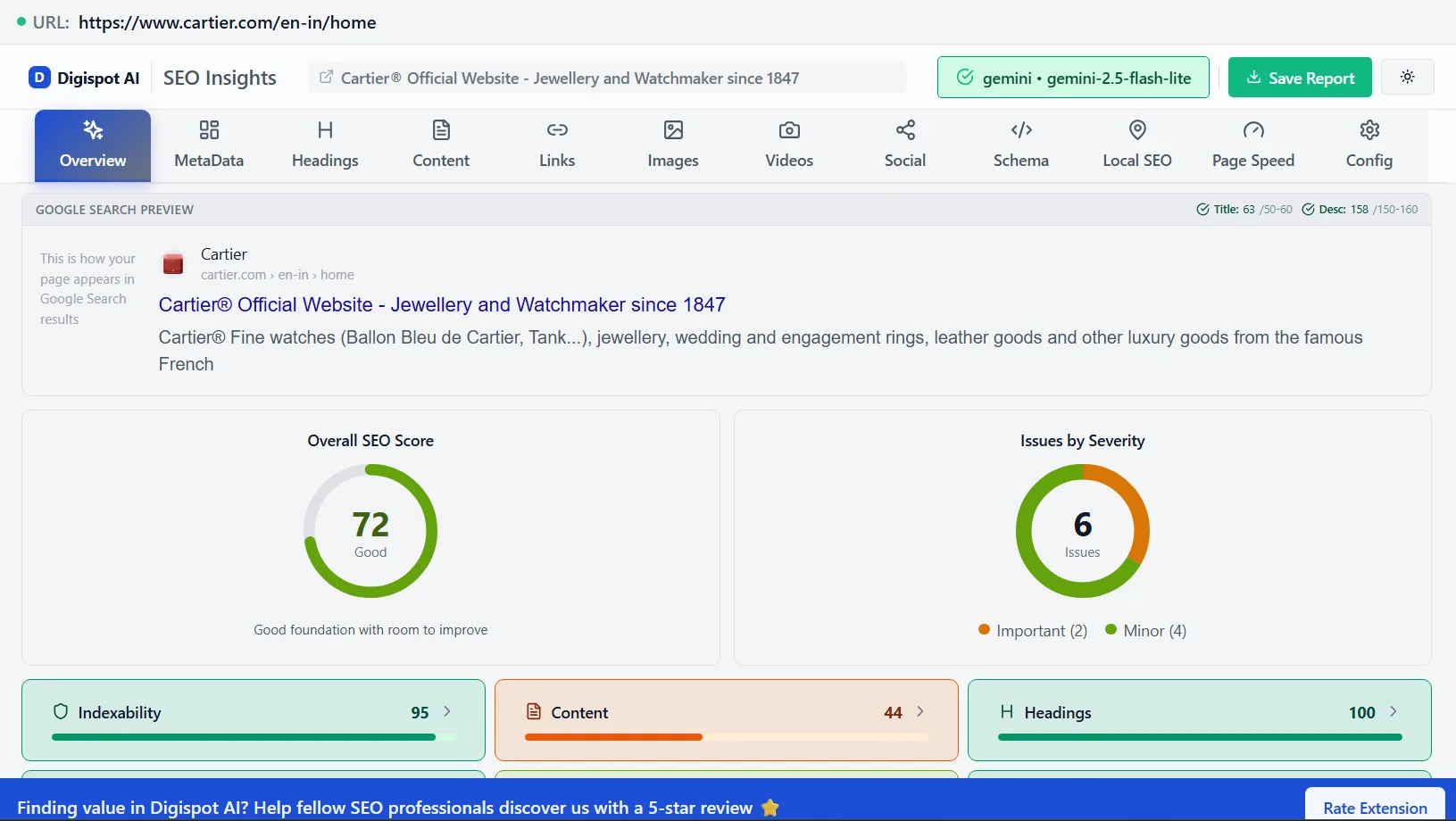
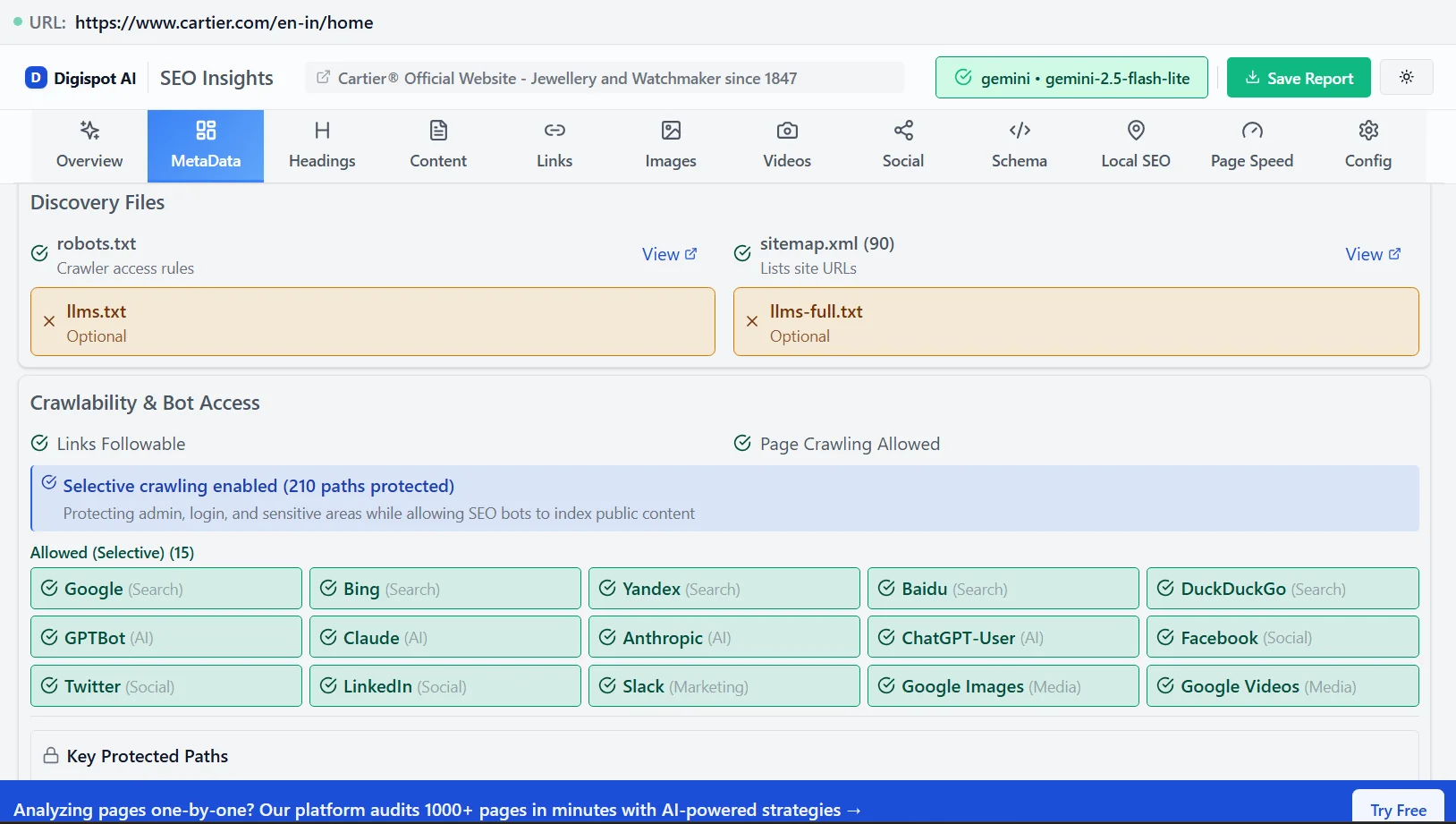
Search engine bots (like Googlebot) crawl your site to discover and index new and updated content. If they encounter 401 or 403 errors on pages that should be public, they cannot access the content. This means the pages won't be indexed, and therefore, they won't appear in search results.
3. Wasted Crawl Budget
Every website has a "crawl budget" – the number of pages Googlebot will crawl on your site within a given timeframe. Large e-commerce sites or enterprise platforms are particularly vulnerable here. If Googlebot spends its visit hitting 403 errors on blocked parameter URLs, it may leave before indexing your new high-value product pages. If you run a large site, our guide to crawl budget optimization explains how to stop access errors from eating into your crawl allowance.
4. Lower Rankings and Lost Traffic
Pages that cannot be crawled and indexed cannot rank. If previously ranking pages start returning these errors (perhaps after a messy migration), they will quickly drop out of search results. This is one of the most common regressions we see, which is why our SEO site migration checklist treats status-code verification as a mandatory launch step. Unresolved errors lead to a direct loss of organic traffic and potential leads or sales.
5. Perception of Quality and Trust (E-E-A-T)
Search engines aim to provide users with the best possible results. A website riddled with access errors signals poor quality and maintenance. This technical instability can negatively impact your overall site authority and E-E-A-T (Experience, Expertise, Authoritativeness, and Trustworthiness) in the eyes of search algorithms. A site that cannot serve its content reliably is not a trustworthy site.
Proactive Measures and Best Practices for a Healthy Website
Beyond reactive fixes, adopting a proactive mindset is essential for maintaining optimal website performance. You need a system that alerts you to these errors before your traffic drops.
1. Regular Website Audits
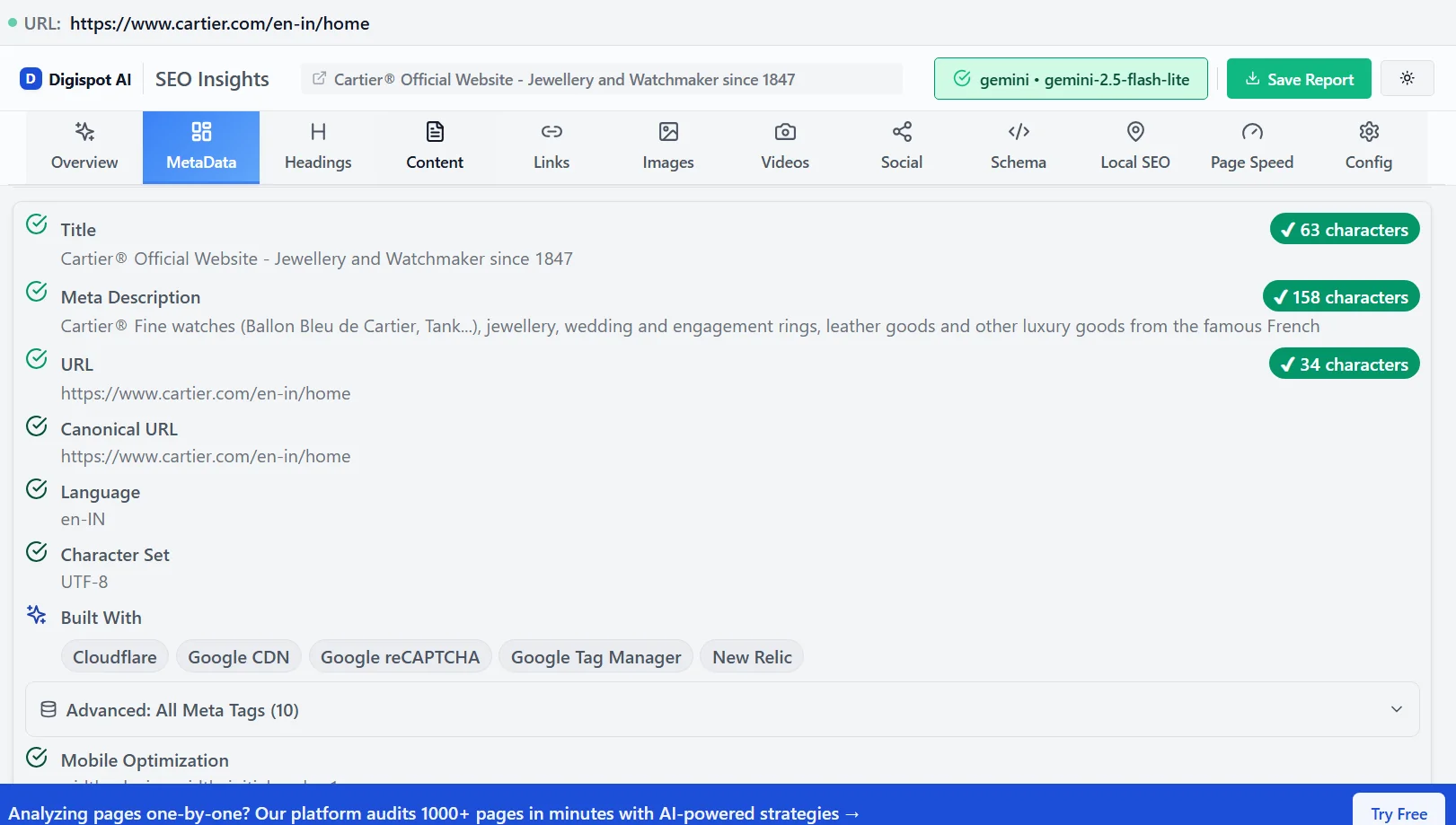
Don't wait for a user to complain. Schedule frequent, comprehensive website audits. Automated tools can crawl your site just like Google does, flagging 401 and 403 errors in real-time.
Digispot AI can help you identify and fix these issues automatically with AI-powered audits analyzing 300+ ranking factors. It goes beyond simple error checking to provide context on why the error is happening and how to fix it based on your specific CMS.
2. Monitor Google Search Console
Google Search Console (GSC) is your direct line to Google's view of your site.
- Navigate to Indexing > Pages.
- Scroll down to the "Why pages aren't indexed" section.
- Look specifically for "Blocked due to access forbidden (403)" or "Submitted URL blocked due to unauthorized request (401)".
- Address these promptly. If GSC sees them, they are already affecting your indexation.
3. Analyze Server Logs
For the most granular data, look at your server's access logs (often found in cPanel or via command line). Log analyzers can show you if specific bots (like Googlebot or Bingbot) are being served 403s while human users are getting 200s. This specific pattern usually indicates an over-aggressive firewall rule blocking the bot's IP range.
A quick way to spot the problem on an Apache/Nginx log is to filter for the crawler user-agent and the status column:
# Show every request Googlebot made that returned a 403
grep "Googlebot" /var/log/nginx/access.log | grep '" 403 '
If that command returns a stream of your money pages (rather than just /wp-admin/), you have a crawler-blocking rule to fix. Before assuming the bot is genuine, verify it with a reverse DNS lookup — many spammers spoof the Googlebot user-agent, and you do not want to whitelist an impostor:
# Confirm the IP really belongs to Google
host 66.249.66.1   # should resolve to a crawl-*.googlebot.com hostname
Once you confirm a legitimate crawler is being blocked, allowlist its verified IP ranges in your firewall or CDN rather than loosening the rule for everyone.
4. Implement Proper Access Control
For secure areas, ensure your authentication (for 401s) and authorization (for 403s) mechanisms are robust and correctly configured. When setting up your robots.txt file, be careful not to block valid resources that render the page (like CSS or JS files), as this can also trigger access issues for the renderer.
5. Use Canonical URLs and Redirects Wisely
If you must restrict a page that was previously public, do not just let it error out.
- If the content has moved: Use a 301 Redirect.
- If the content is permanently gone: Use a 410 Gone status (better than 404).
- If the content is now members-only: Ensure the login page returns a 200 OK (not a 401 directly on the URL unless configured for API auth) and guides the user to log in.
6. Utilize a Staging Environment
Never test permission changes on your live site. Use a staging environment to modify .htaccess rules or file permissions. This allows you to catch "Access Denied" errors before they affect your live audience and SEO. A consistent SEO audit checklist should always include a pre-launch check of HTTP status codes.
Conclusion: Mastering the Gates to Digital Success
HTTP 401 Unauthorized and 403 Forbidden errors are more than just technical nuisances; they are critical signals about your website's accessibility and health. Ignoring them is akin to putting up a "closed" sign on your digital storefront, deterring both human visitors and the indispensable search engine bots. By understanding the mechanical differences—401 requiring identity and 403 requiring permission—you can diagnose root causes faster and prevent revenue-impacting downtime.
The journey to an optimized, error-free website requires vigilance. As search engines evolve into Answer Engines, technical accessibility becomes the foundation of visibility. If an AI cannot access your page due to a misconfigured 403 error, your content cannot be the source of the answer.
Start Improving Your Site Health Today
Don't let invisible errors drain your crawl budget. Platforms like Digispot AI provide the intelligence and automation needed to detect, diagnose, and resolve issues like HTTP error codes through comprehensive auditing capabilities.
Ready to improve your search visibility? Try Digispot AI for comprehensive website audits and actionable recommendations that keep your digital gates open for business.
References
Audit any page in seconds
300+ SEO checks including Core Web Vitals, schema markup, meta tags, and AI readiness — trusted by 1000+ SEO experts and marketers.
Frequently Asked Questions
Here are some of our most commonly asked questions. If you need more help, feel free to reach out to us.
Written by
Maya Krishnan
Digital growth expert
Maya is a seasoned expert in web development, SEO, and digital strategy, dedicated to helping businesses achieve sustainable growth online. With a blend of technical expertise and strategic insight, she specializes in creating optimized web solutions, enhancing user experiences, and driving data-driven results. A trusted voice in the industry, Maya simplifies complex digital concepts through her writing, empowering readers with actionable strategies to thrive in the ever-evolving digital landscape.