How to Setup Robots.txt for SEO: The Definitive Guide (2026)
Master the Robots Exclusion Protocol. Learn how to setup robots.txt to optimize crawl budget, control AI bots, and secure your site's SEO foundation.
 Maya Krishnan
Your website is a house, and Googlebot is the inspector. If you leave the front door wide open, that inspector will wander into every messy closet, check the attic you haven't cleaned in years, and waste time looking at your plumbing instead of your beautiful living room.
This is exactly what happens without a properly configured robots.txt file.
The robots.txt file is the very first handshake between your website and search engines. Before Google, Bing, or AI agents like ChatGPT look at a single line of your content, they check this file. It dictates the rules of engagement: where they can go, what they should ignore, and how they should prioritize their time.
Get it right, and you improve your crawl budget, secure your sensitive data, and boost your SEO rankings. Get it wrong, and you could accidentally de-index your entire site or block the resources Google needs to render your pages—which is why robots.txt is a foundational step in getting your website indexed on Google.
In this guide, we will move beyond basic syntax. We will cover how to setup robots.txt for modern SEO, including handling AI crawlers for AEO (Answer Engine Optimization) and validating your file to prevent catastrophic errors.
What is Robots.txt?
The robots.txt file is a simple text file that resides in the root directory of your website. It is part of the Robots Exclusion Protocol (REP), a standard used by websites to communicate with web crawlers and other web robots.
Think of it as a "Code of Conduct" sign posted at the entrance of your digital property.
The Location is Non-Negotiable
For a crawler to find your instructions, the file must be named exactly robots.txt (all lowercase) and placed at the root of your domain.
- Correct:
https://www.digispot.ai/robots.txt - Incorrect:
https://www.digispot.ai/blog/robots.txt - Incorrect:
https://www.digispot.ai/ROBOTS.TXT
If a bot cannot find the file at the root, it assumes there are no restrictions and will attempt to crawl everything it can find.
Why Robots.txt is Critical for SEO
You might think, "I want Google to find everything, so why block anything?" This is a fundamental misunderstanding of how search engines work. Strategic blocking is just as important as strategic indexing.
1. Optimizing Crawl Budget
Google doesn't have infinite resources. It assigns a "crawl budget" to your site based on its authority and update frequency. If you let Googlebot waste its budget crawling thousands of generated tag pages, internal search result URLs, or printer-friendly versions of articles, it may not have enough budget left to crawl your new, high-value blog posts.
By disallowing low-value paths, you funnel Googlebot toward your money pages.
2. Preventing Duplicate Content Issues
eCommerce sites often generate parameterized URLs for filters (e.g., ?color=blue&size=large). Without restrictions, these create thousands of duplicate pages that dilute your ranking power. Blocking these parameters in robots.txt is a strong signal to ignore them.
3. Controlling AI and LLM Access
In the era of Generative AI, bots like GPTBot (OpenAI), ClaudeBot (Anthropic), and CCBot (Common Crawl) scour the web to train models. You need to decide: do you want your content to train their models?
Digispot AI helps you monitor these interactions. If you block them entirely, your brand might not appear in AI-generated answers (AEO). If you allow them without strategy, they might scrape your proprietary data. Your robots.txt file is the control center for this decision.
4. Hiding Private or Staging Areas
While robots.txt is not a security mechanism (the file is public, after all), it keeps honest bots out of your admin panels, staging environments, and script folders.
The Core Syntax of Robots.txt
The syntax is deceptively simple. It consists of groups of directives. Each group applies to a specific "User-agent" (bot).
1. User-agent
This defines which bot the rules apply to.
User-agent: Googlebot
The asterisk * is a wildcard representing all bots.
User-agent: *
2. Disallow
The command to stop a bot from accessing a URL path.
Disallow: /admin/
This blocks everything inside the /admin/ folder.
3. Allow
This command is used to grant access to a sub-folder or file within a parent folder that is Disallowed. This is specific to Google and Bing.
Disallow: /private/
Allow: /private/public-image.jpg
4. Sitemap
You can (and should) declare the location of your XML sitemap here.
Sitemap: https://www.example.com/sitemap_index.xml
5. Comments
Use # to leave comments for humans. Bots ignore everything after the hash.
# Block access to the cart page
Disallow: /cart/
Step-by-Step: How to Setup Robots.txt
Creating this file requires precision. A single misplaced character can de-index your site.
Step 1: Analyze Your Site Structure
Before writing a single line, audit your site. Identify what should not be crawled.
- Admin login pages (
/wp-admin/,/admin) - Internal search results (
/search?,?q=) - Shopping cart and checkout pages
- User account pages (
/my-account/) - Temporary staging URLs
- PDF files meant for internal use
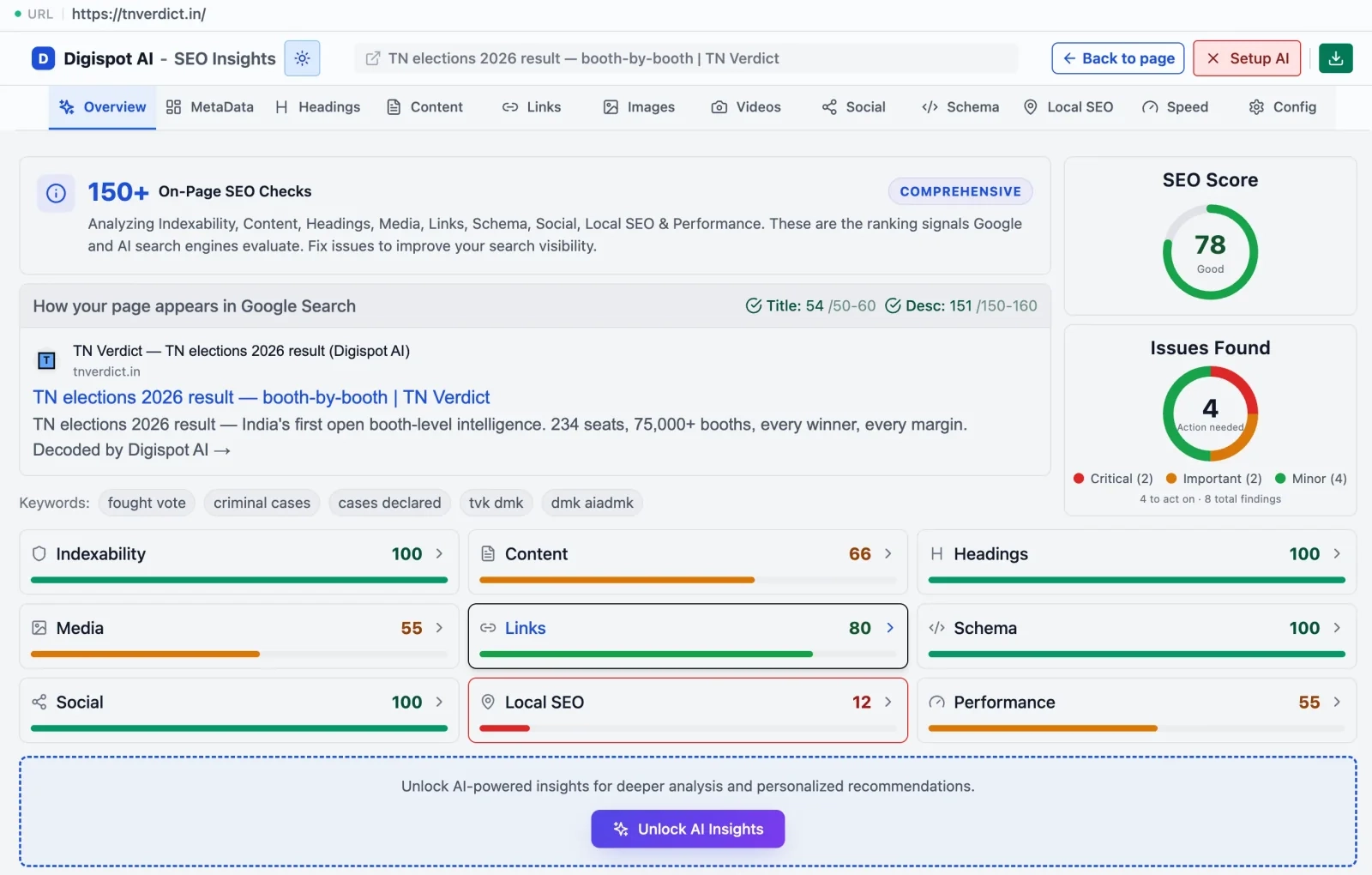
If you aren't sure which pages are currently wasting your crawl budget, try the free On-Page SEO Analysis tool to see what bots are currently seeing on your key pages.
Step 2: Create the File
Open a plain text editor like Notepad (Windows), TextEdit (Mac), or Sublime Text. Do not use Word, as it adds formatting code.
Start with the general rules for all bots:
User-agent: *
Disallow: /wp-admin/
Disallow: /cart/
Disallow: /checkout/
Disallow: /my-account/
Disallow: /*?s=
Step 3: Add Bot-Specific Rules
Sometimes you want to treat Google differently than an SEO tool bot or an AI scraper.
Example: Blocking Ahrefs or Semrush bots to save server bandwidth, while allowing Google.
User-agent: AhrefsBot
Disallow: /

User-agent: SemrushBot
Disallow: /
Step 4: Add Your Sitemap
Add the absolute URL of your sitemap at the very bottom.
Sitemap: https://www.example.com/sitemap_index.xml
Step 5: Upload and Test
Save the file as robots.txt. Connect to your server via FTP or use your hosting provider's file manager (cPanel/Plesk). Upload the file to the public_html or root folder.
Verify it by visiting yourdomain.com/robots.txt in your browser.
Advanced Strategies: Wildcards and Pattern Matching
Google and Bing support advanced pattern matching using wildcards. This allows for powerful, dynamic rules.
The Asterisk (*)
Matches any sequence of characters.
Scenario: You want to block all URLs that contain a question mark (query parameters).
Disallow: /*?
Scenario: You want to block all subdirectories that start with "private".
Disallow: /private*/
The Dollar Sign ($)
Matches the end of the URL. This is useful when you want to block a specific file extension.
Scenario: Block all .pdf files.
Disallow: /*.pdf$
Without the $, this rule would also block /file.pdf-explanation.html, which you might not intend.
AEO Strategy: Managing AI Bots in Robots.txt
This is where modern SEO evolves into AEO (Answer Engine Optimization). AI platforms like ChatGPT, Claude, and Google Gemini rely on crawling the web to update their knowledge bases.
Should you block them?
Option A: Block All AI Bots (Privacy Focus)
If your site contains proprietary data, paid content, or sensitive intellectual property, you may want to prevent LLMs from ingesting it.
User-agent: GPTBot
Disallow: /

User-agent: CCBot
Disallow: /

User-agent: ClaudeBot
Disallow: /
Option B: Allow AI Bots (Visibility Focus)
For most businesses, being cited by ChatGPT or appearing in Google's AI Overviews is a visibility goal. If you block these bots, the AI models won't know your current pricing, updated features, or latest blog posts.
Recommendation: Allow the main AI bots to crawl your informational content (blog, products, about page) but block them from internal search or utility pages to save server resources.
Digispot AI specializes in tracking AEO visibility. We often see that sites blocking GPTBot lose significant referral traffic from "Search with ChatGPT" features.
Common Robots.txt Mistakes to Avoid
Even seasoned SEO pros make mistakes here. Ensure you avoid these crawl-killers.
1. Blocking CSS and Javascript
In the past, SEOs blocked /wp-includes/ or /assets/ to save crawl budget. Do not do this.
Google renders pages just like a modern browser. If you block CSS and JS files, Googlebot sees a broken, unstyled page. It may assume your site is not mobile-friendly or lacks content.
Check: Use the URL Inspection tool in GSC to "Test Live URL" and view the screenshot. If it looks broken, check your robots.txt.
2. Using Robots.txt for De-indexing
This is the most dangerous misconception.
If you have a page indexed in Google, and you add Disallow: /that-page/ to robots.txt, Google will not remove it from the index. It simply stops crawling it to update the content. The result will remain in search results, often with a description like "No information is available for this page."
The Fix: To remove a page, leave it crawlable in robots.txt and add a <meta name="robots" content="noindex"> tag to the page header. Once Google crawls that tag, it will drop the page.
For a deeper dive on fixing indexation issues, read our guide on common SEO mistakes.
3. Conflict Between Rules
Directives cascade differently depending on the bot. Google follows the "longest rule match" (specificity), while others might follow the first rule they encounter.
Ambiguous:
User-agent: *
Disallow: /folder/
Allow: /folder/page.html
This usually works for Google, but keep your file clean. Group specific user-agent rules separately from the wildcard * group to avoid confusion.
How to Audit Your Robots.txt
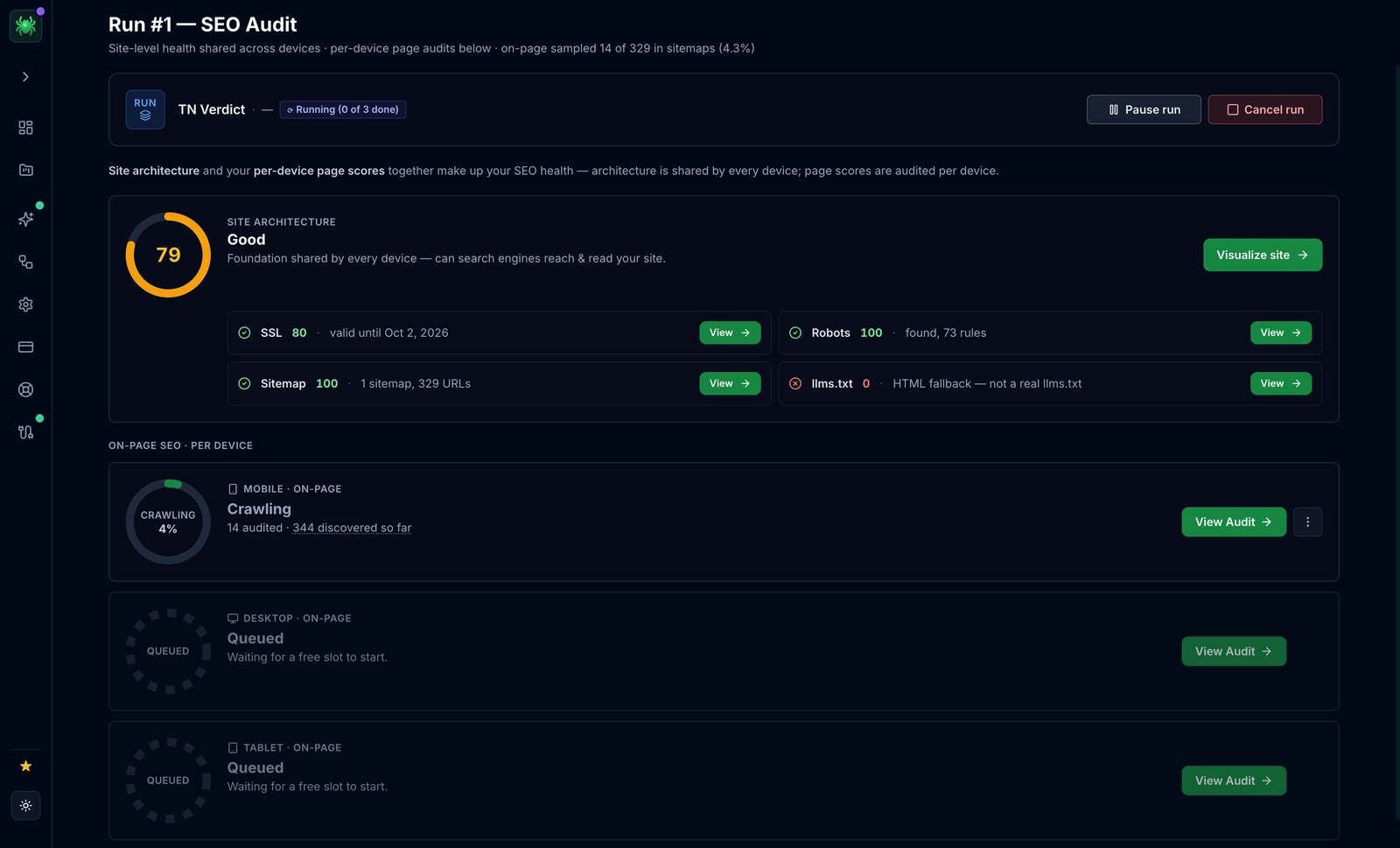
Never upload a robots.txt file without testing it. A typo could block your entire site (Disallow: /).
1. Google Search Console (Legacy Tester)
Google maintains a Robots.txt Tester tool (in the legacy tools section) that allows you to simulate requests. You can enter a URL, select "Googlebot," and see if it is Allowed or Blocked.
2. Digispot Chrome Extension
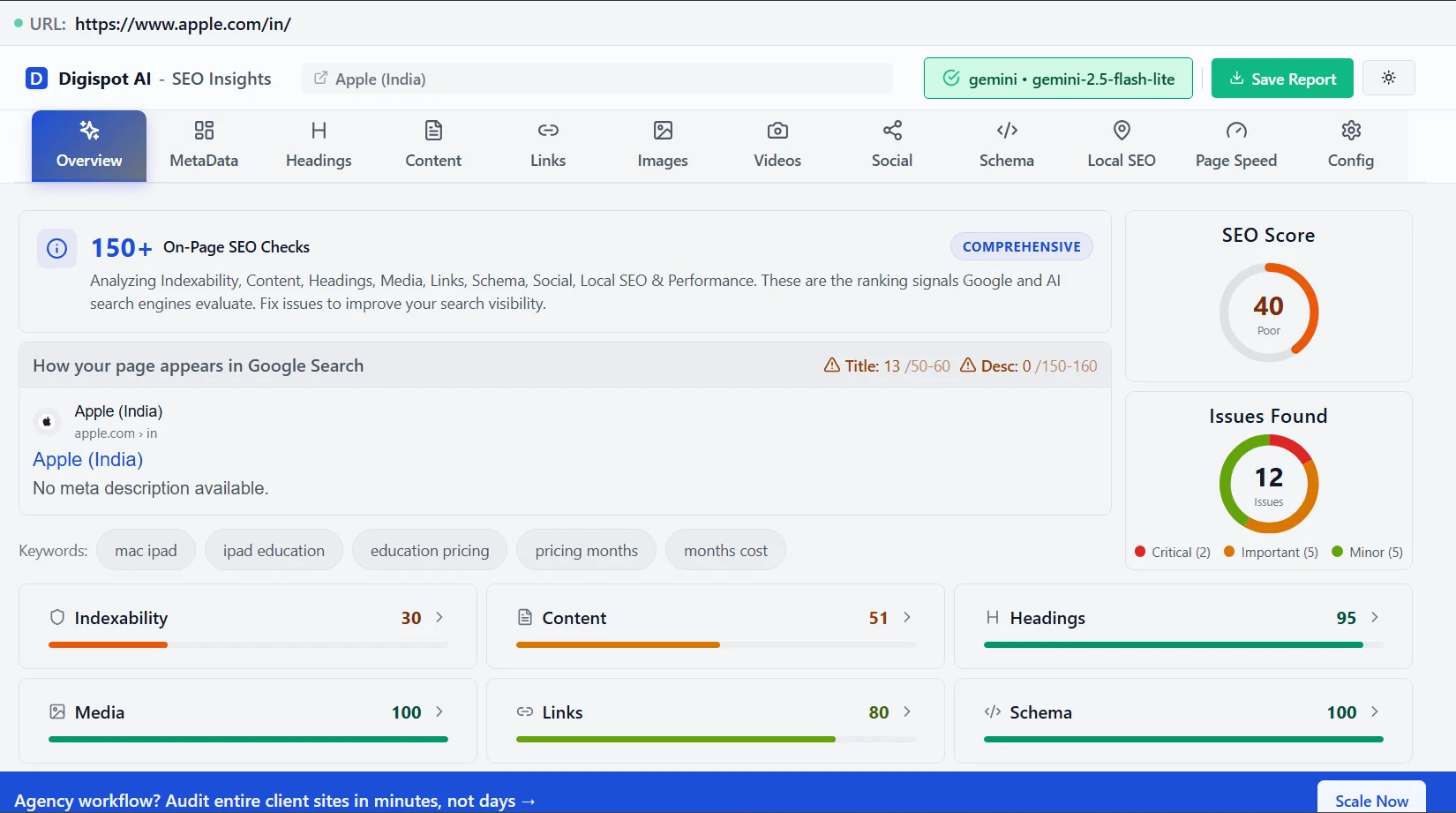
For instant, on-the-fly checking, our extension is invaluable. When you land on any page, it instantly tells you if the current URL is blocked by robots.txt.
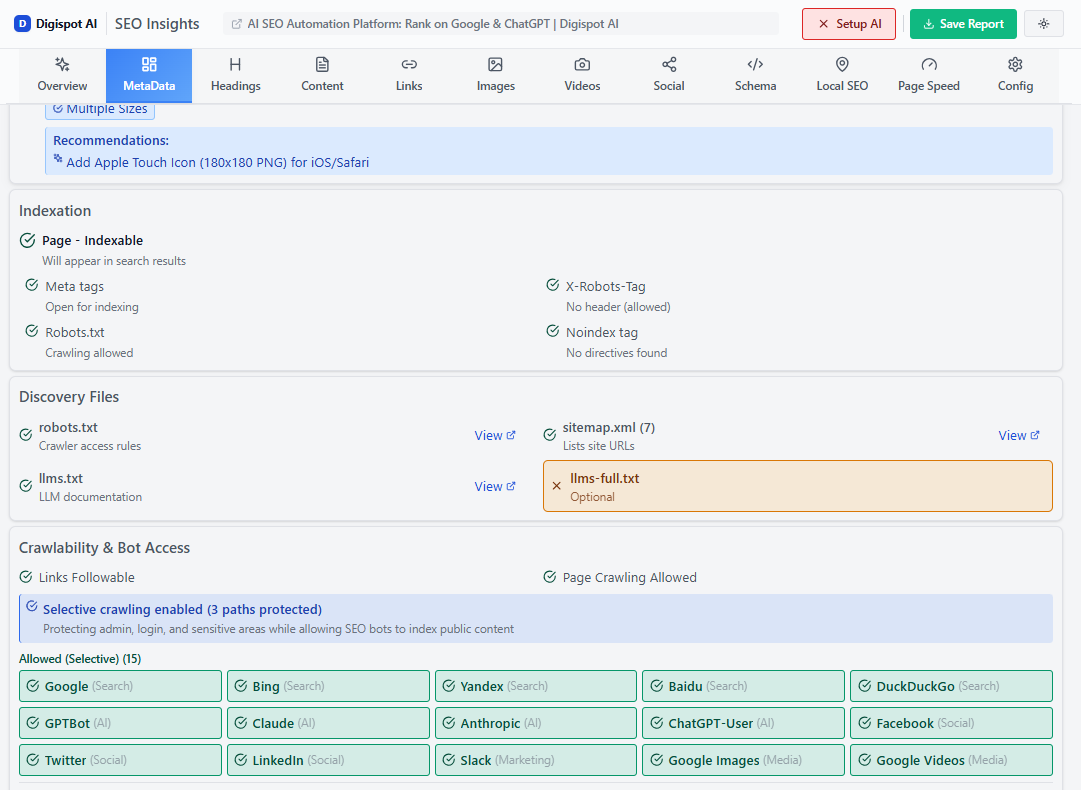
Get instant SEO insights on any page with our free Chrome extension.
3. Log File Analysis
If you want to know if bots are actually obeying your rules, you need to look at your server log files. If you see Googlebot requesting URLs that are Disallowed, your syntax might be incorrect, or the file might be cached.
Platform-Specific Setup Guides
WordPress
WordPress creates a virtual robots.txt automatically. To edit it, you shouldn't edit core files.
- Option 1: Use an SEO plugin like Yoast or RankMath. They have built-in file editors.
- Option 2: Upload a physical
robots.txtfile to the root via FTP. This overrides the virtual one.
Shopify
Shopify used to lock down robots.txt. Now, you can edit it by creating a template in your theme code (robots.txt.liquid).
- Go to Online Store > Themes.
- Edit Code.
- Add a new template >
robots.txt. - Use Liquid code to add custom rules.
Wix & Squarespace
These platforms manage the file for you but now offer toggle switches or specific settings panels to inject custom rules. Check their respective "SEO Settings" dashboards.
Schema and Robots.txt
While robots.txt controls access, Schema markup helps bots understand what they access. Ensure that if you are using JSON-LD schema, the script isn't blocked by a broad rule targeting .js files or script folders.
If you need to generate clean JSON-LD without coding, use the free Schema Markup Generator to create valid structured data in minutes.
Conclusion: Take Control of Your Crawl
Your robots.txt file is small, but it wields immense power. It is the gatekeeper of your SEO strategy. By setting it up correctly, you ensure that Google, Bing, and the new wave of AI search engines focus their energy on your most valuable content.
Recap of Best Practices:
- Placement: Always in the root directory.
- Budget: Block low-value parameters and admin pages.
- Rendering: Never block CSS or JS files.
- De-indexing: Use
noindextags, not robots.txt blocking, to remove content. - AEO: Strategically allow or block AI bots depending on your business goals.
Don't let crawl errors silently kill your rankings.
Ready to improve your search visibility? Try Digispot AI for comprehensive website audits. Our platform automatically detects robots.txt conflicts, monitors crawl budget wastage, and simulates how AI engines view your content.
Related deep-dives
Continue with these closely related guides:
- to create — How to Create and Submit an XML Sitemap: The 2026 Guide
References
Audit any page in seconds
300+ SEO checks including Core Web Vitals, schema markup, meta tags, and AI readiness — trusted by 1000+ SEO experts and marketers.
Frequently Asked Questions
Here are some of our most commonly asked questions. If you need more help, feel free to reach out to us.
Written by
Maya Krishnan
Digital growth expert
Maya is a seasoned expert in web development, SEO, and digital strategy, dedicated to helping businesses achieve sustainable growth online. With a blend of technical expertise and strategic insight, she specializes in creating optimized web solutions, enhancing user experiences, and driving data-driven results. A trusted voice in the industry, Maya simplifies complex digital concepts through her writing, empowering readers with actionable strategies to thrive in the ever-evolving digital landscape.